Start from Telegram
You don't need the website to use Eloqra. If you found us through Telegram, you can set everything up right there — no email, no signup form, no browser. This guide covers the Telegram-first route; if you prefer to begin in the web dashboard, see Getting Started.
How it works#
Your Telegram account is your Eloqra account. The first time you open the bot, Eloqra provisions an account and a first project for you automatically. Everything you'd normally do in the web dashboard — copy the snippet, customize the widget, read and answer conversations — is available in the Telegram Mini App. You can attach an email and use the web dashboard later; both are surfaces of the same account.
1. Open the bot#
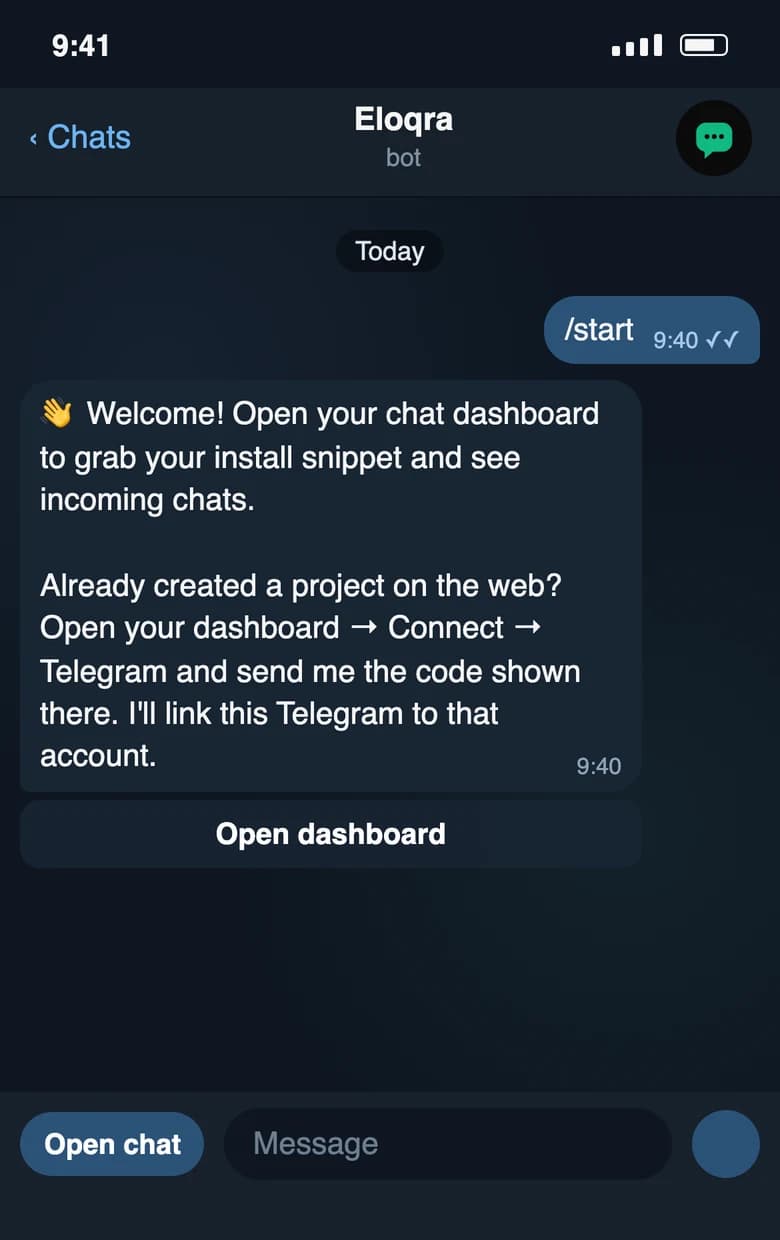
Open @eloqra_bot in Telegram and press Start. That single tap creates your account and your first project — there is nothing to fill in. The bot replies with a button that opens the Mini App onboarding.
2. Grab your snippet#
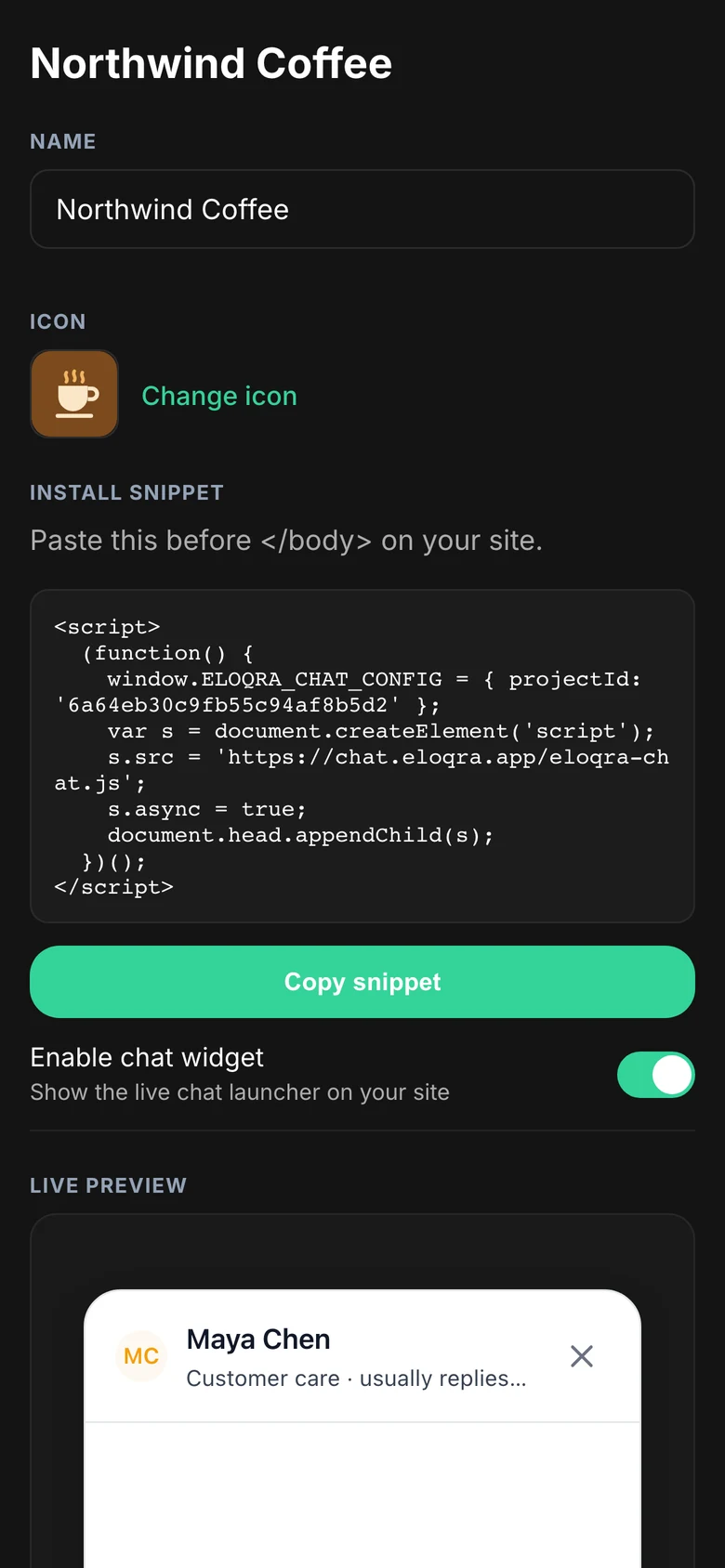
The Mini App onboarding hands you the embed snippet for your project. Copy it and paste it into your site — anywhere inside <head> or just before the closing </body>. See the integration guides for framework-specific placement. As soon as it's live, visitor messages arrive in this same Telegram chat, and your replies go straight back to the visitor.
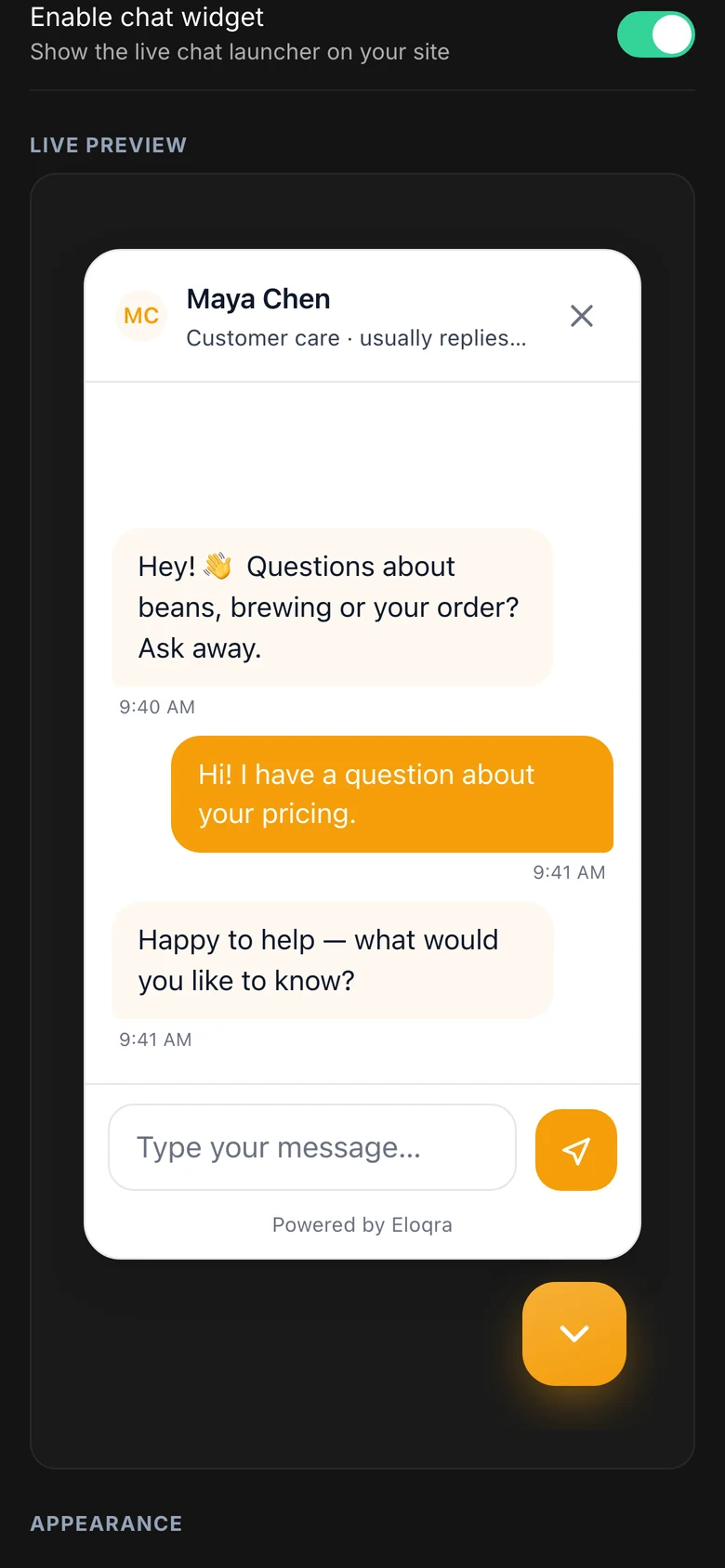
You can also customize the widget without leaving Telegram: the Mini App's project settings cover the theme, accent palette, launcher position, greeting, and pre-chat form. See the widget configuration reference for every setting.
Optional: add email and web login#
If you later want the web dashboard, open Manage → Account & web access in the Mini App (see the Mini App guide). From there you can jump into the web dashboard with a one-tap login handoff — no password needed — or add an email and password so you can sign in to chat.eloqra.app directly. Either way it's the same account: projects, conversations, and settings stay in sync across Telegram and the web.
Already signed up on the web?#
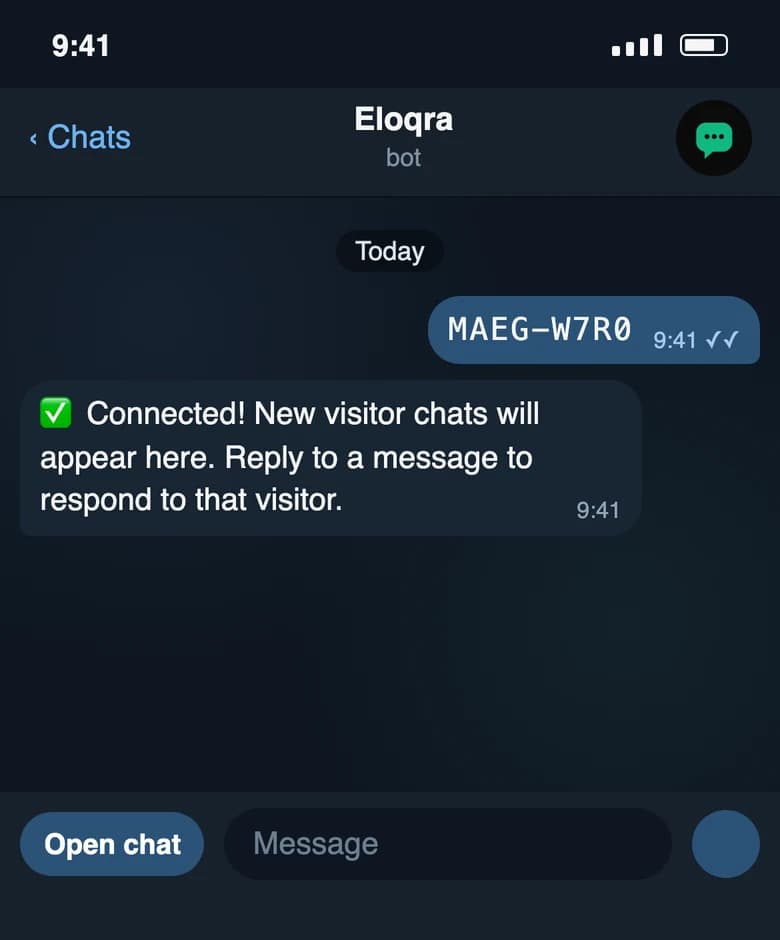
If you already created a project at chat.eloqra.app and then opened the bot, you'll end up with a second, Telegram-only account. To join them, open Connect → Telegram in your web dashboard, then send the code it shows you to the bot ( /link ABCD-EFGH, or just paste the code). Your Telegram-only projects and conversations move across to your web account — nothing is lost. The Mini App offers the same step the first time you open it.