The Telegram Mini App
The Eloqra Mini App is the operator app that runs inside Telegram. From it you read and answer conversations, create and configure projects, buy extra project slots and open the web dashboard. It signs you in from your Telegram session, so there's no password to enter. This page walks through every screen.
Opening the Mini App#
There are three ways in:
- The bot's menu button. After you press Start in @eloqra_bot, the chat with the bot gets an Open chat menu button, and the welcome message carries an Open dashboard button. Both open the Mini App.
- Open in app on a notification. The first message of each new conversation arrives in Telegram with an Open in app button. Unanswered reminders carry the same kind of link. Tapping it opens the Mini App straight on that conversation.
- A conversation link. Those buttons are ordinary Telegram links of the form
https://t.me/eloqra_bot?startapp=conv_<id>. The Mini App looks for that conversation in every project you own and opens it. If it can't find it, you land in the inbox.
The Telegram back button works throughout. It takes you from a conversation or Manage back to the inbox, and from any screen under Manage back to Manage.
First run#
If none of your projects has had a conversation yet and you have at most one project, the Mini App opens on a short setup flow instead of the inbox. It keeps doing that each time you open it until the first visitor message arrives.
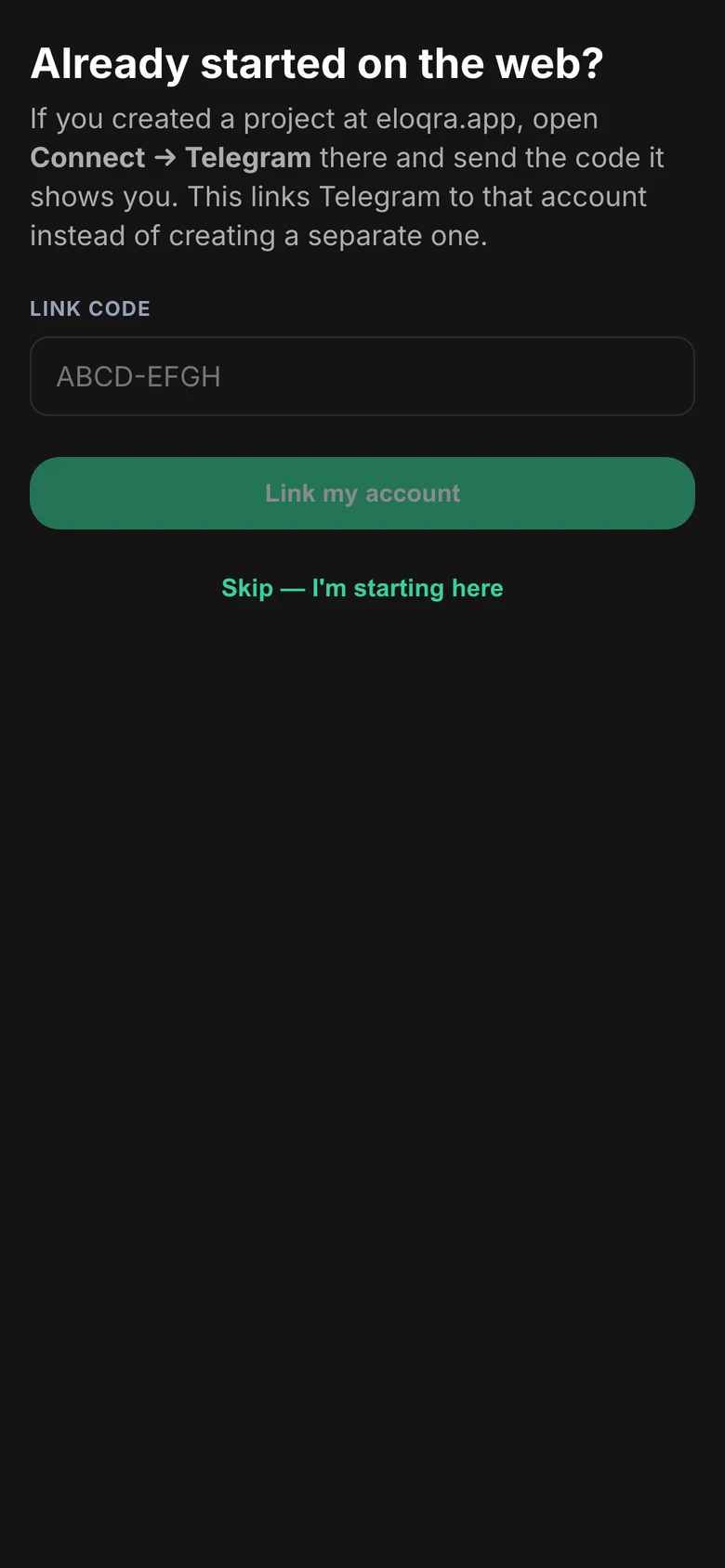
Step 1: Already started on the web?
You only see this step if your account was created from Telegram. If you already made a project at eloqra.app, open Connect → Telegram there, type the code it shows into Link code and tap Link my account. This joins your Telegram to the web account instead of keeping a separate one, and you go straight to the inbox.
If you're starting fresh, tap Skip — I'm starting here. The Mini App remembers this on your device and won't ask again.
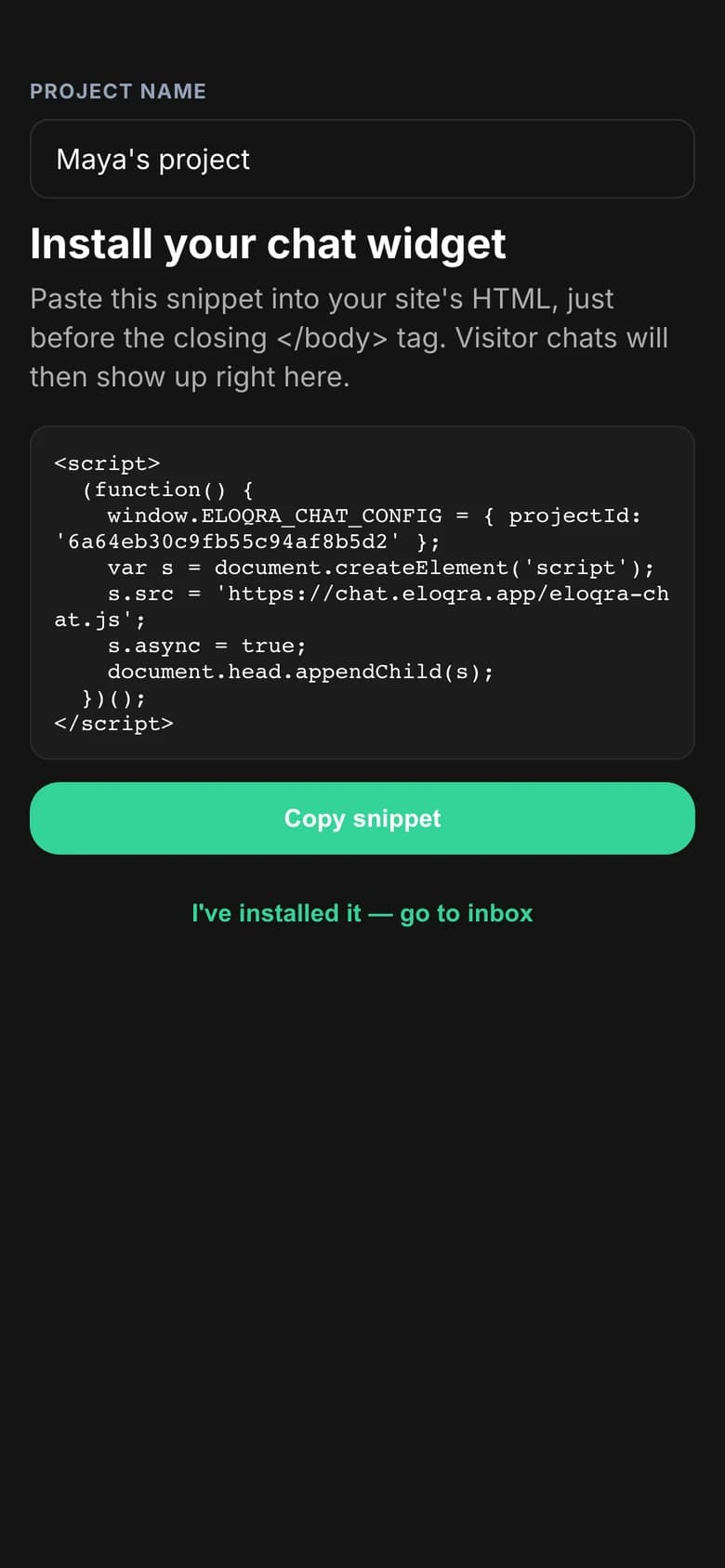
Step 2: Install your chat widget
- Check the Project name. It can't be left empty.
- Tap Copy snippet and paste the snippet into your site's HTML, just before the closing
</body>tag. The integration guides cover specific platforms. - Tap I've installed it — go to inbox.
For the whole Telegram-first route, see Start from Telegram.
Inbox#
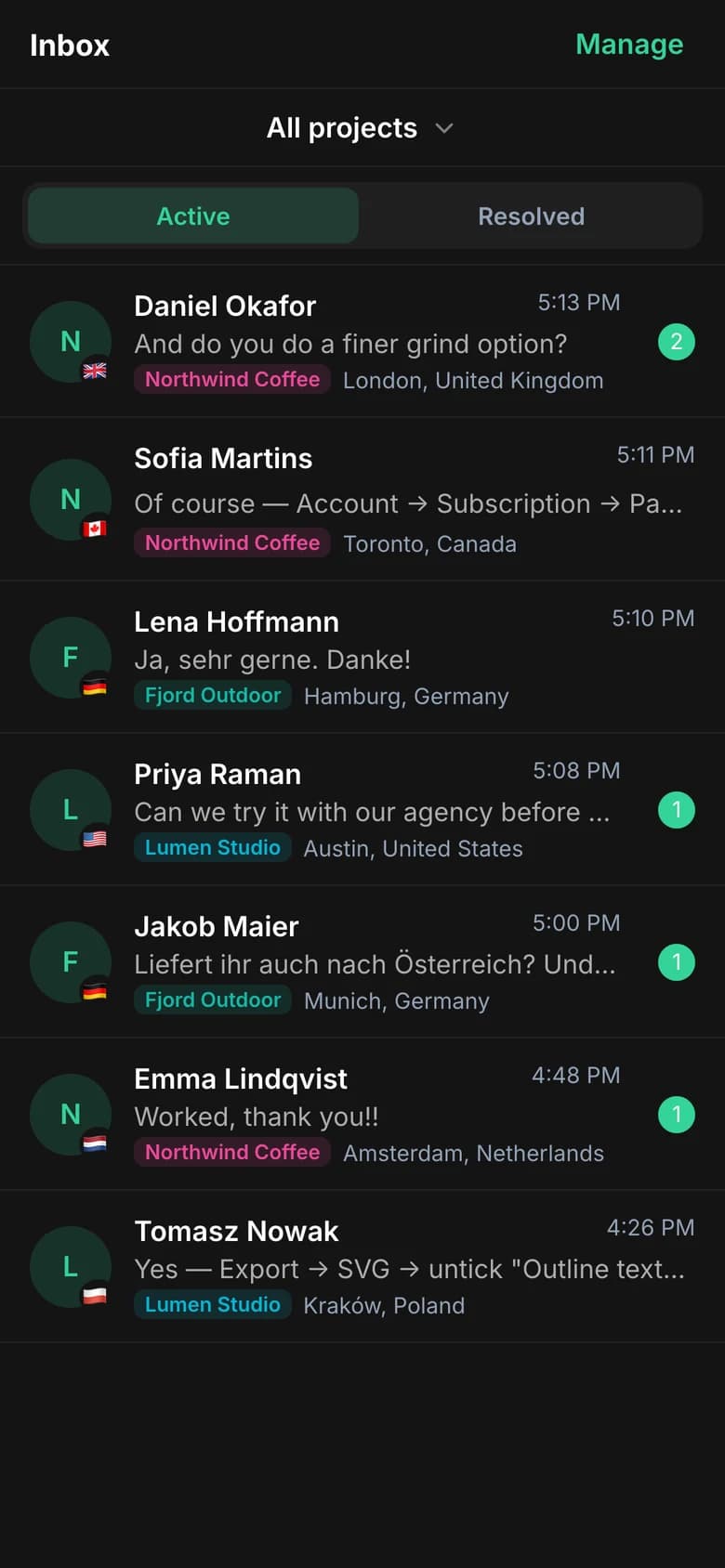
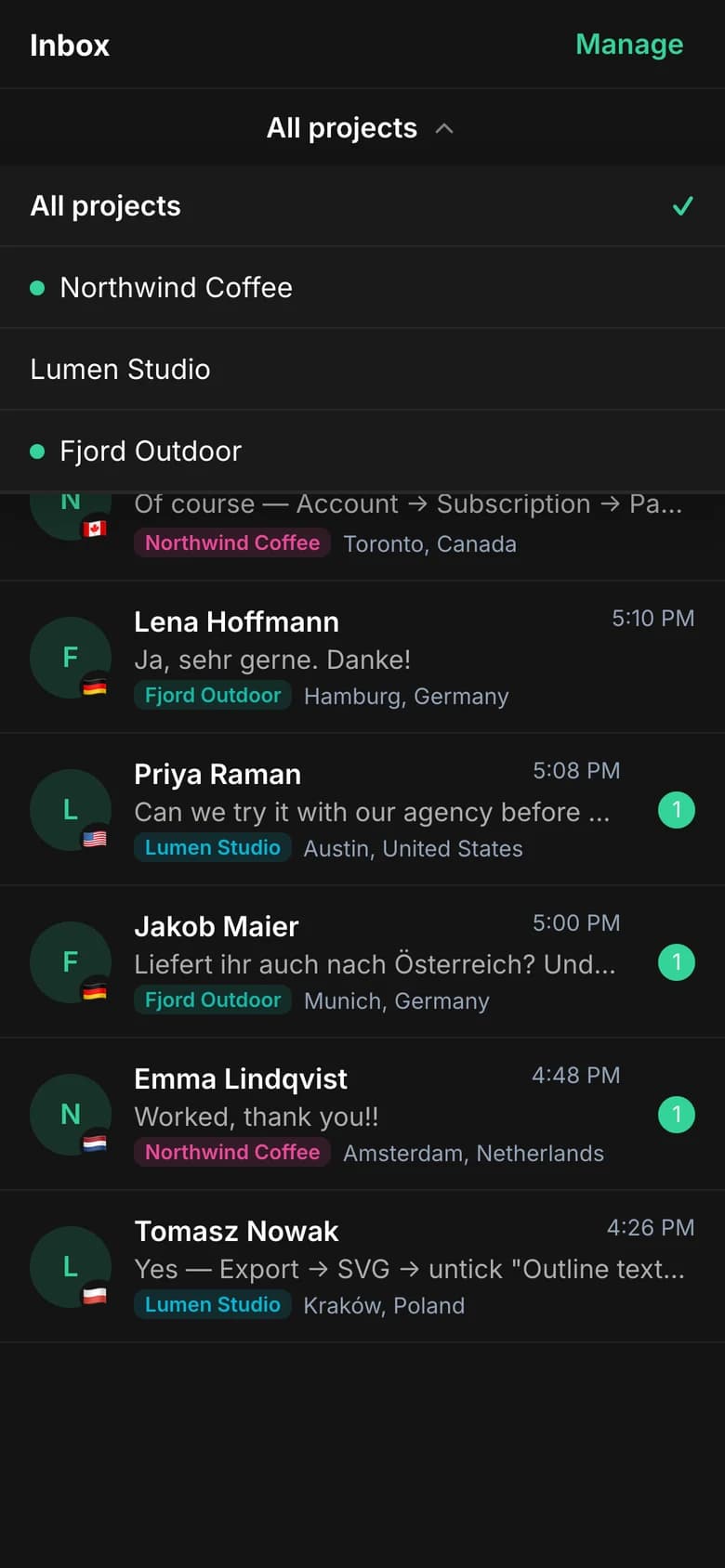
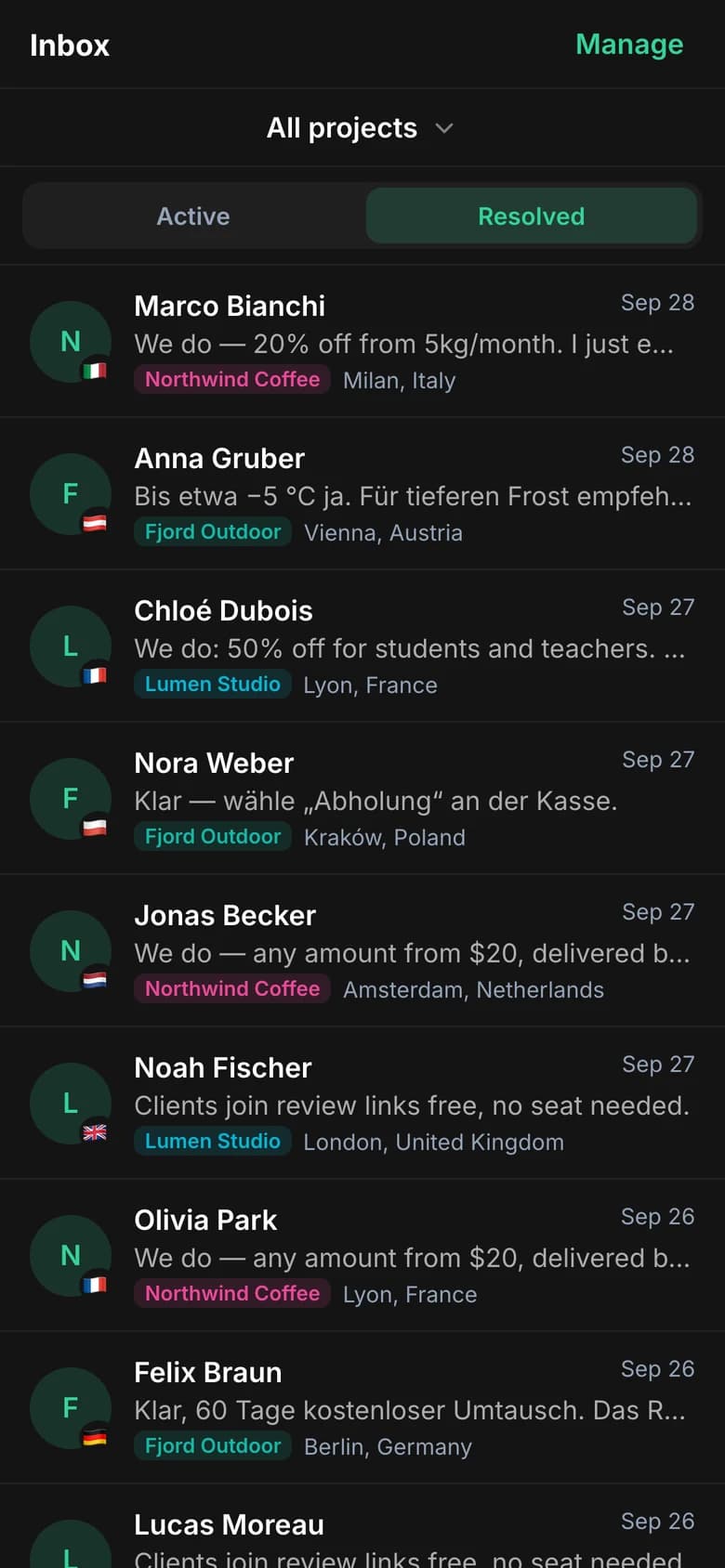
The inbox lists conversations from all your projects, newest activity first. It refreshes every few seconds, and a conversation that gets a new message slides to the top.
- Project switcher. If you have more than one project, the control under the top bar switches between All projects (the combined inbox) and a single project. Projects connected to Telegram show a dot. Your choice is remembered the next time you open the app.
- Active / Resolved. The two tabs switch between open conversations and ones you've resolved.
- Each row shows the visitor, the time of the last message, a preview of that message, a country flag, and a typing… preview while the visitor is typing.
- Project badges. In the combined view with more than one project, each row carries a colored tag with its project name.
- Location appears next to the badge when it's known.
- Unread badge. A count on the right shows messages you haven't read yet. It clears when you open the conversation.
From your second visit on, a banner may offer to add Eloqra to your home screen for one-tap access. Tap Add to start Telegram's own add-to-home-screen flow, or × to dismiss it. Either way it won't come back, and it isn't shown if the app is already on your home screen.
Conversation#
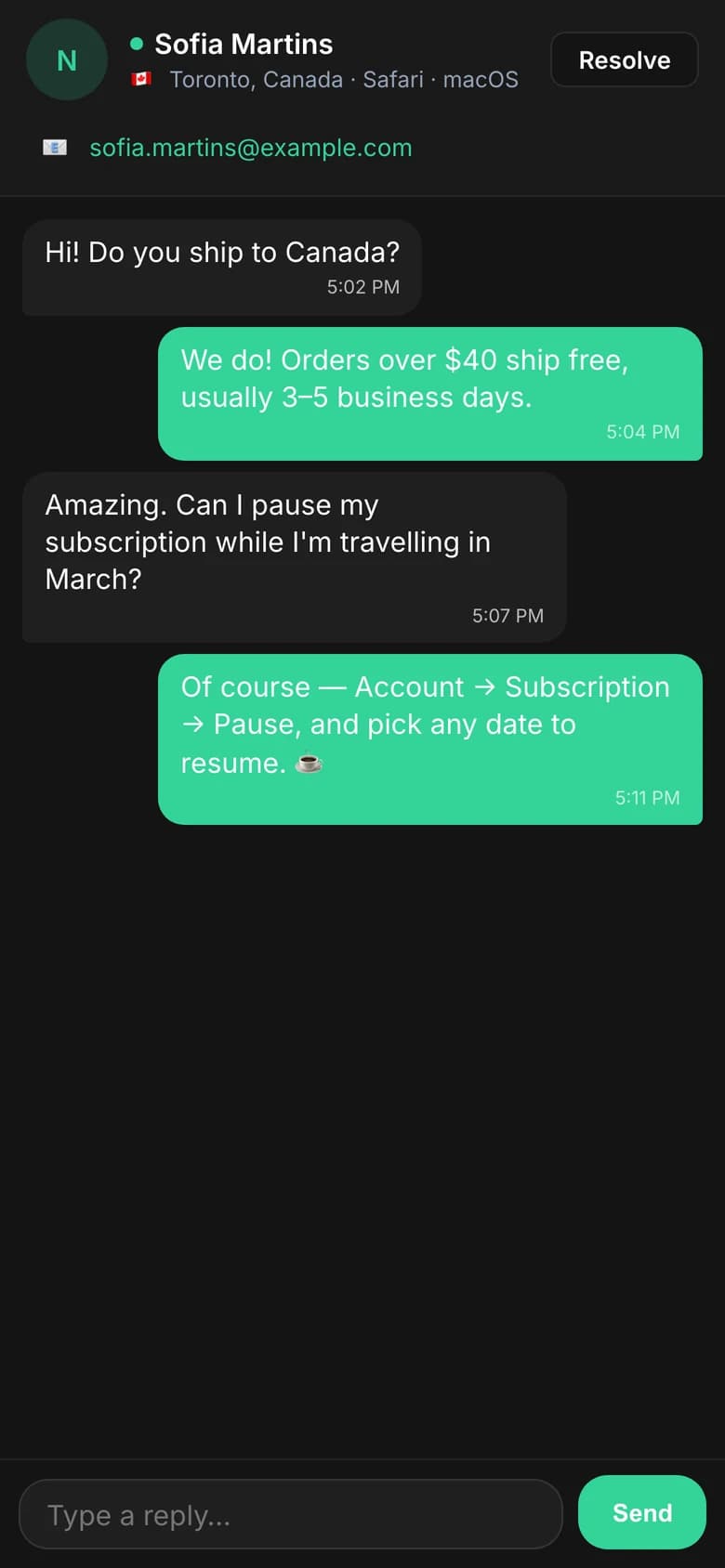
Tap a row to open the conversation. Opening it marks it read, and new messages appear every few seconds.
- Visitor details across the top: the visitor's name, a status dot, their location and browser/OS, and their email if they gave one in the pre-chat form. Tap the email to copy it.
- Resolve closes the conversation and takes you back to the inbox. On a resolved conversation the same button reads Reopen.
- Reply composer. Type in the box at the bottom and tap Send. The box grows with your text. On a keyboard, Enter sends and Shift+Enter adds a new line. While you type, the visitor sees a typing indicator (if typing indicators are on for the project).
- Copy a message. Press and hold any message to copy its text. A short Copied notice confirms it. On desktop Telegram, right-click does the same.
Manage#
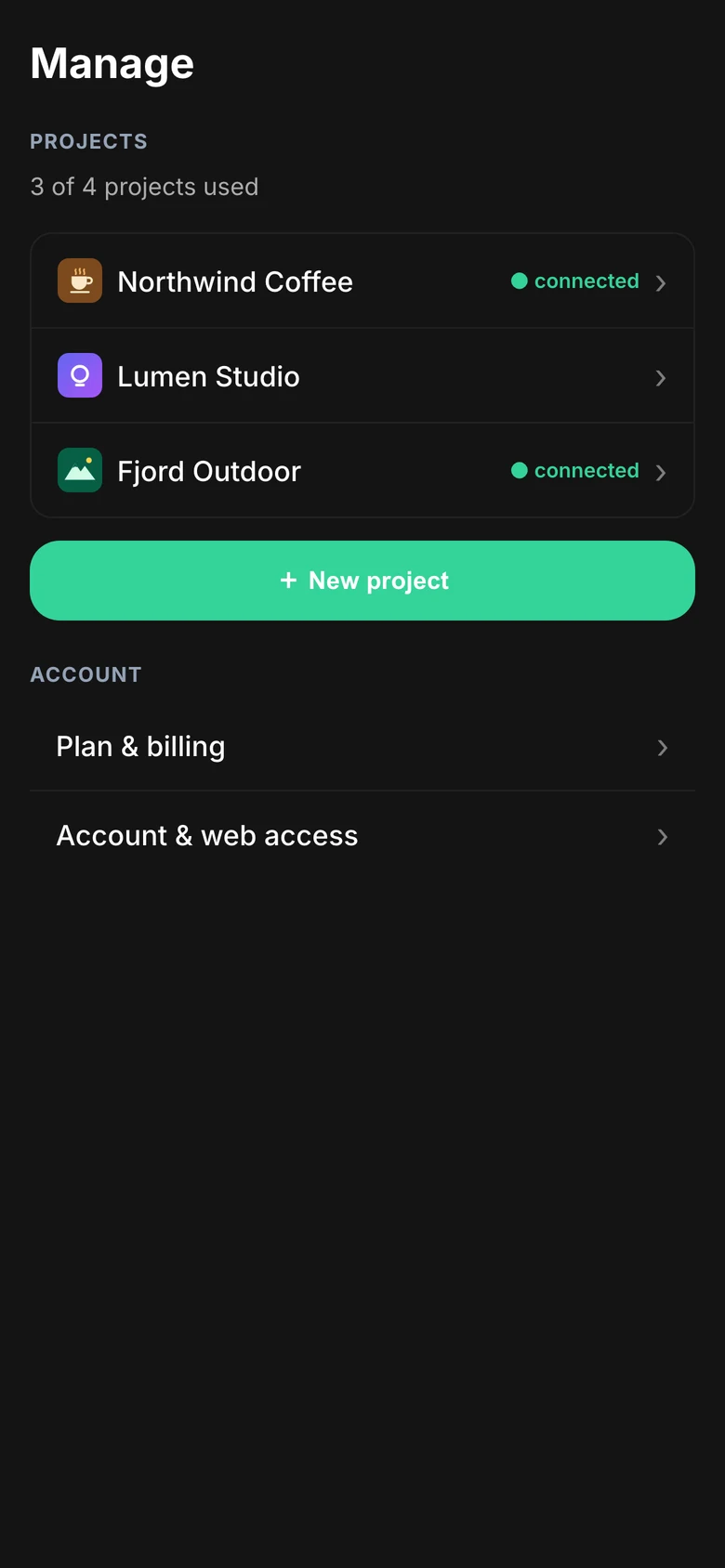
Tap Manage in the inbox's top bar. This screen lists your projects and shows how many you're using, for example 1 of 1 project used. Projects linked to this Telegram carry a ● connected tag. Tap a project to open its settings.
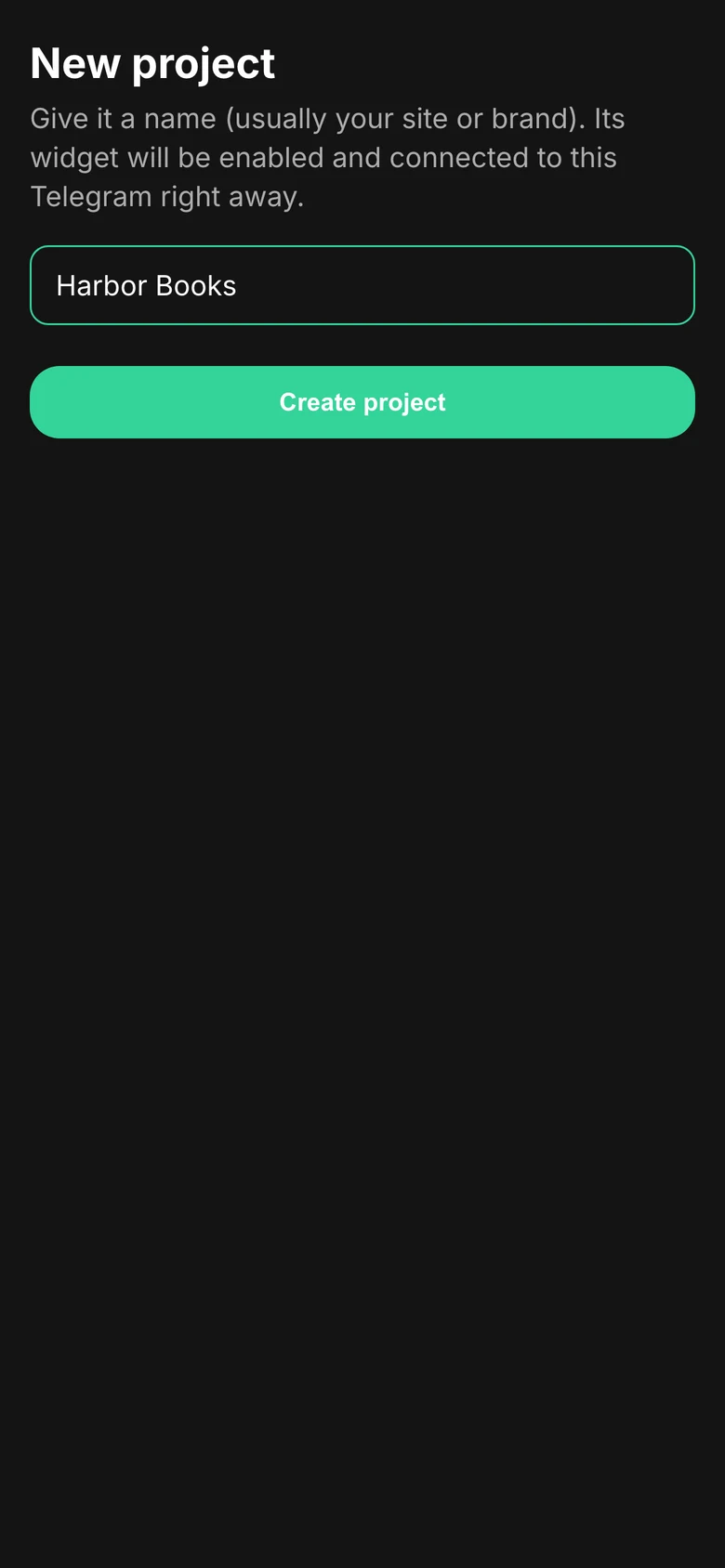
- + New project asks for a name (usually your site or brand). The new project's widget is enabled and connected to this Telegram right away.
- When you've used every project slot, the button changes to Upgrade to add more projects and opens Plan & billing.
- Under Account: Plan & billing and Account & web access.
Project settings#
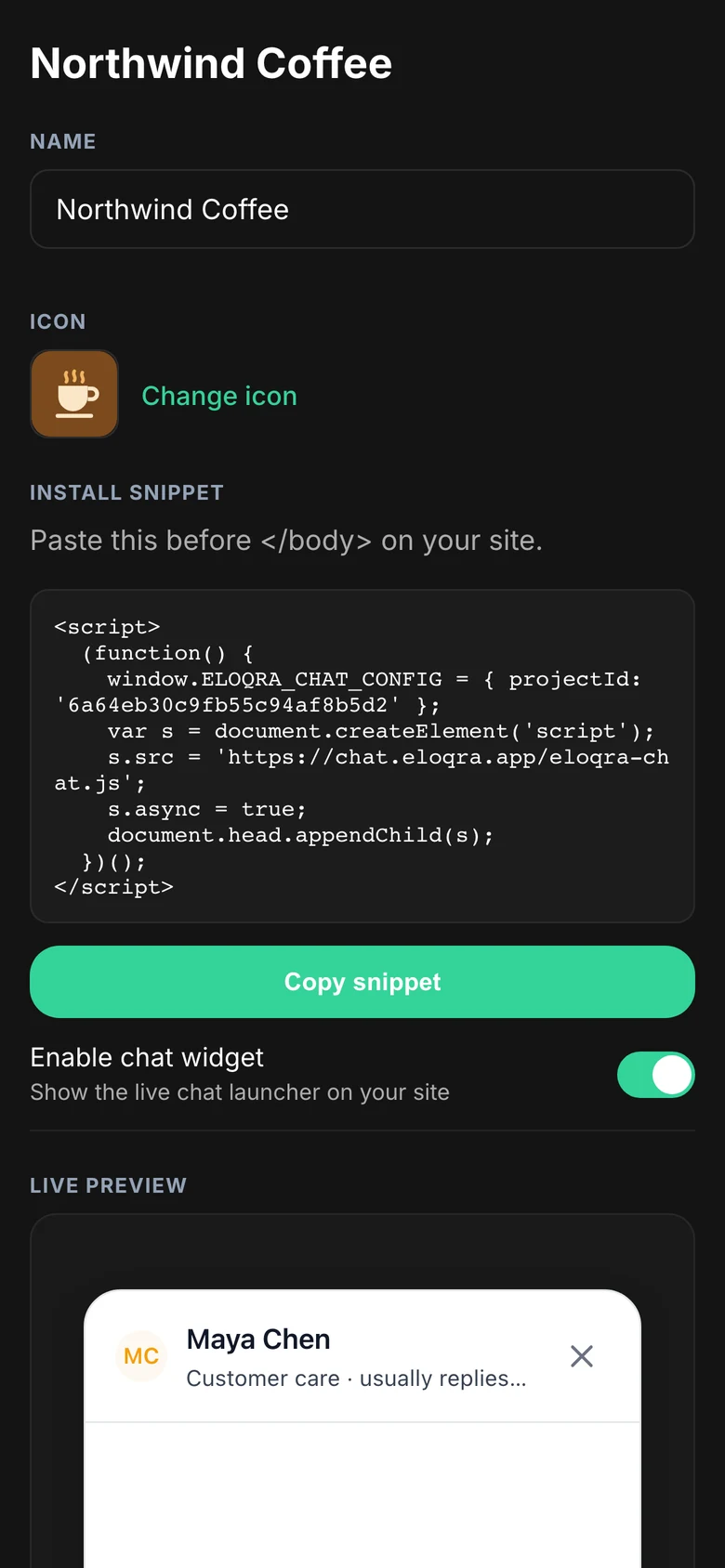
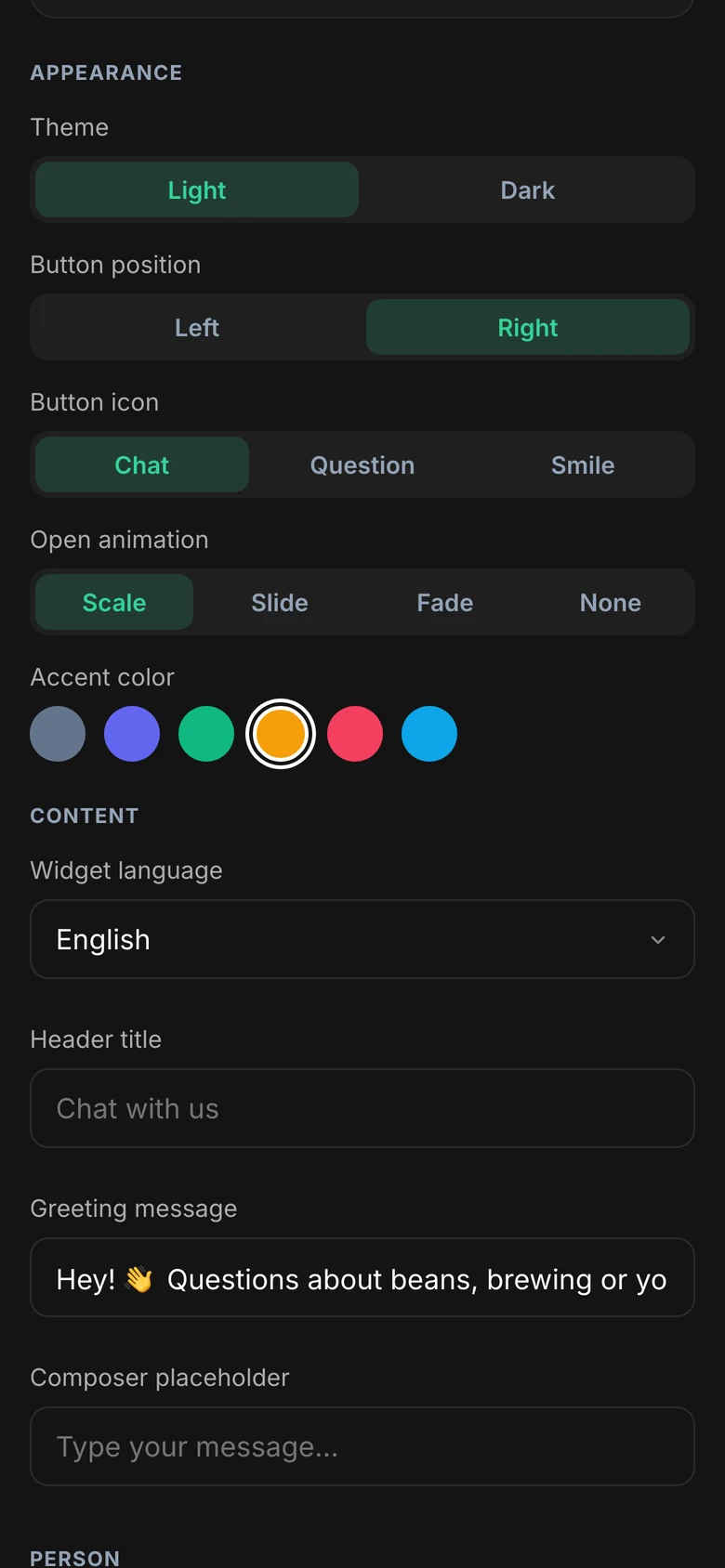
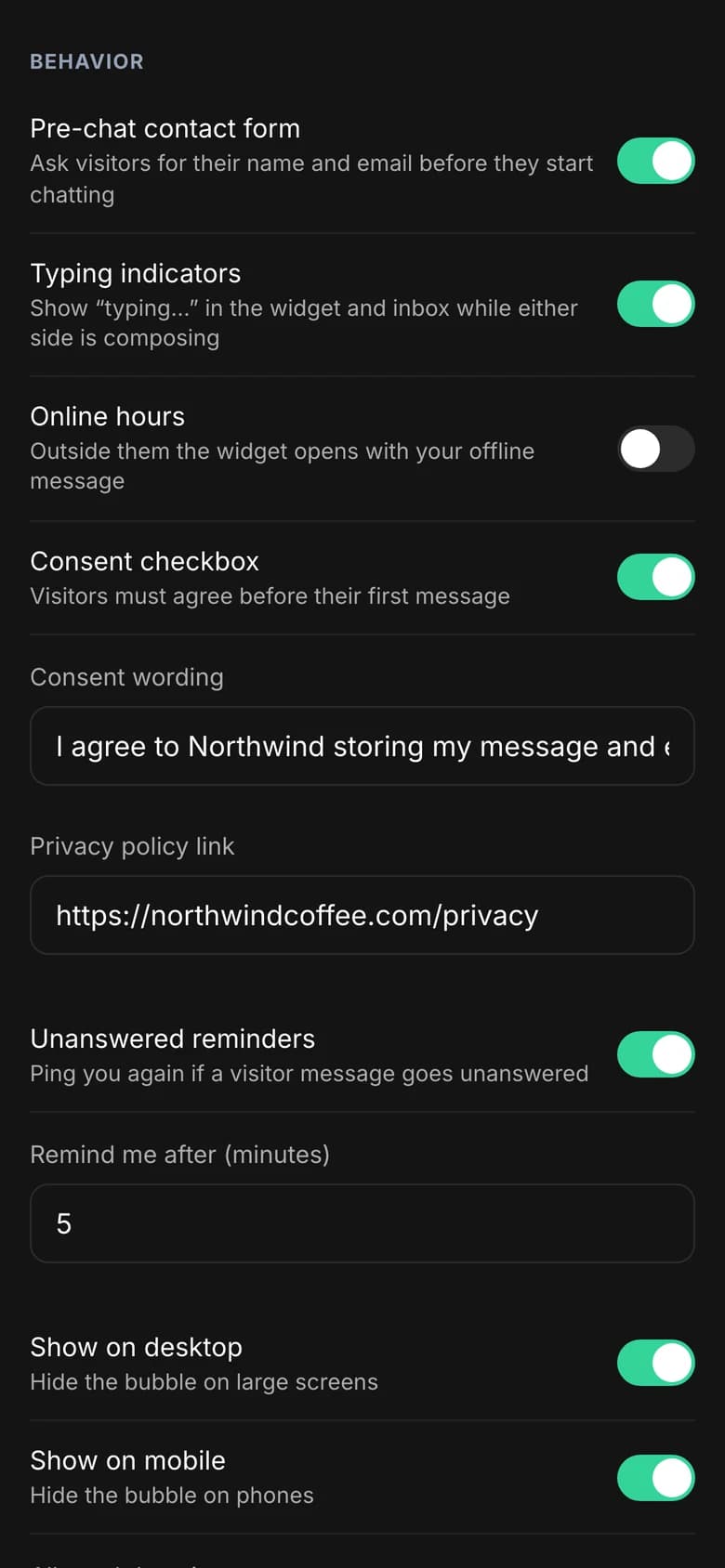
A project's settings screen covers the same widget options as the web dashboard. Nothing changes on your site until you tap Save changes at the bottom. For what each setting does, see the widget configuration reference. From top to bottom:
- Name and Icon (tap to upload an image).
- Install snippet with Copy snippet. Paste it before
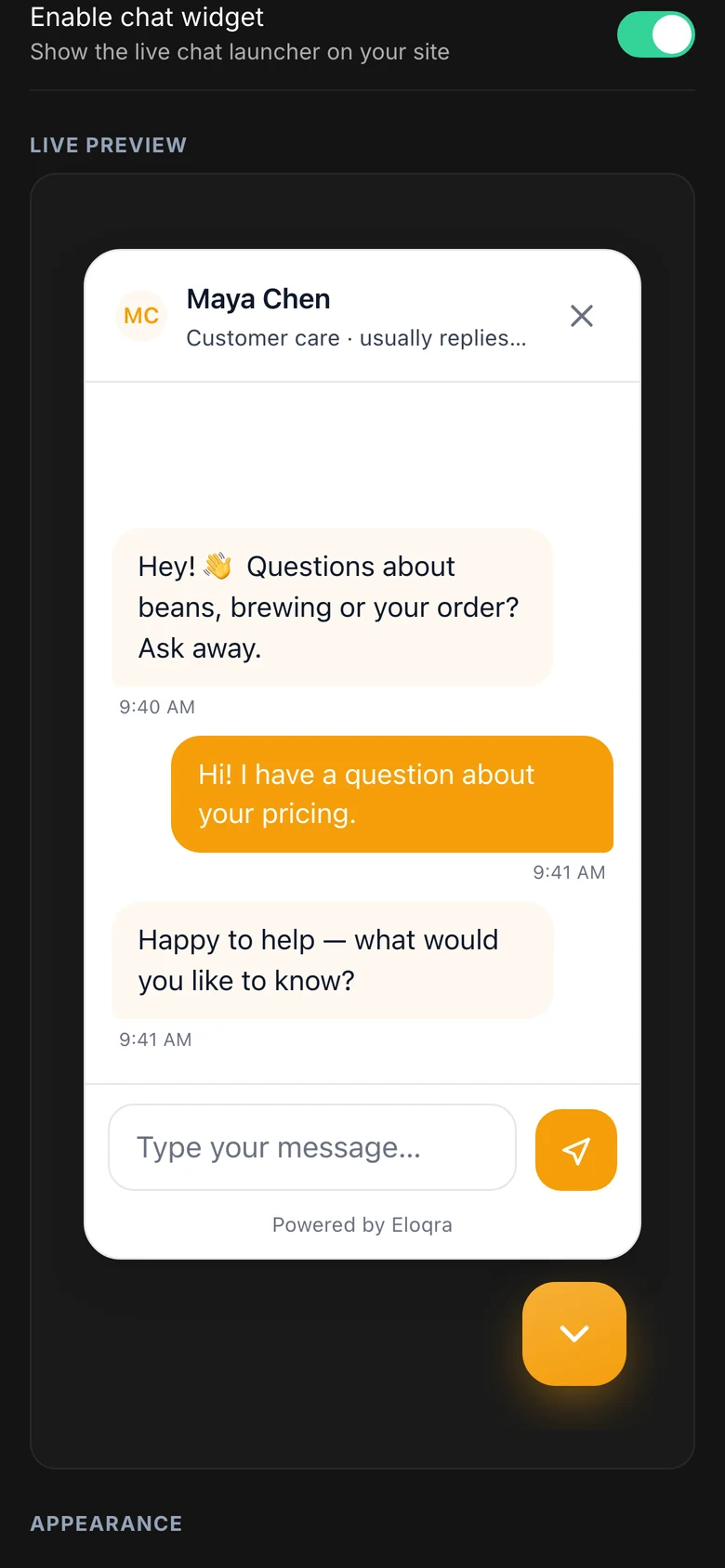
</body>on your site. - Enable chat widget, the master switch that shows or hides the launcher on your site.
- Live preview, which updates as you change appearance, content and person settings.
- Appearance: theme, button position, button icon, open animation and accent color. More
- Content: widget language, header title, greeting message and composer placeholder. More
- Person: show a person in the chat header, with a photo, name and description. More
- Behavior: pre-chat contact form, typing indicators, online hours (days, from/to and offline message), consent checkbox (wording and privacy policy link) and unanswered reminders (remind me after N minutes).
- Show on desktop and Show on mobile.
- Allowed domains, separated by commas. Leave it empty to let the widget run anywhere. localhost always works.
Web-only settings
A few settings can only be changed in the web dashboard:
- Page rules (show only on / never show on certain paths). See Choosing pages.
- Online hours timezone. When you first turn on online hours in the Mini App, it uses your phone's timezone and shows it under the times. To pick a different timezone, use the web dashboard.
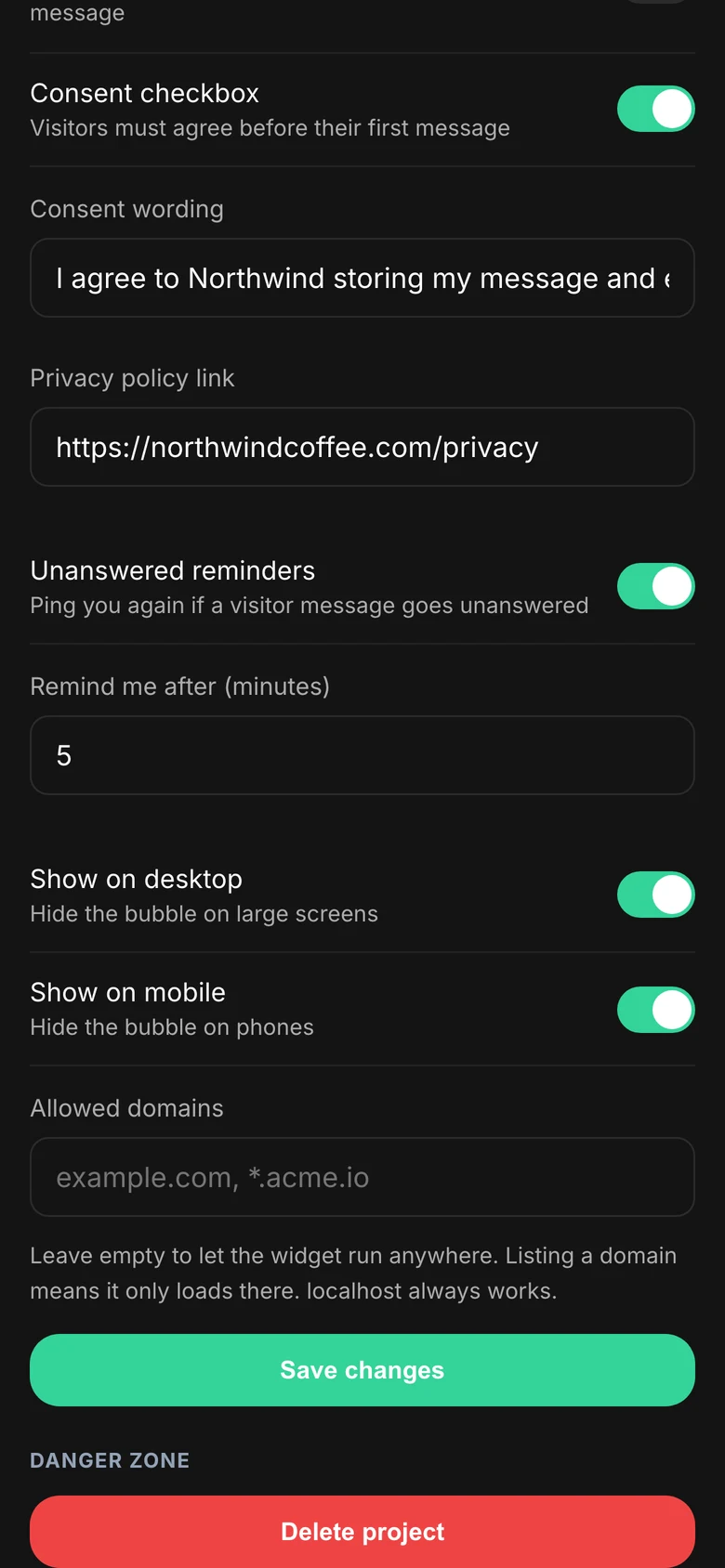
Danger zone
Delete project asks you to confirm first. Yes, delete permanently deletes the project — its widget stops loading and its conversations no longer appear in your inbox — and can't be undone. Cancel backs out. More in Projects.
Plan & billing#
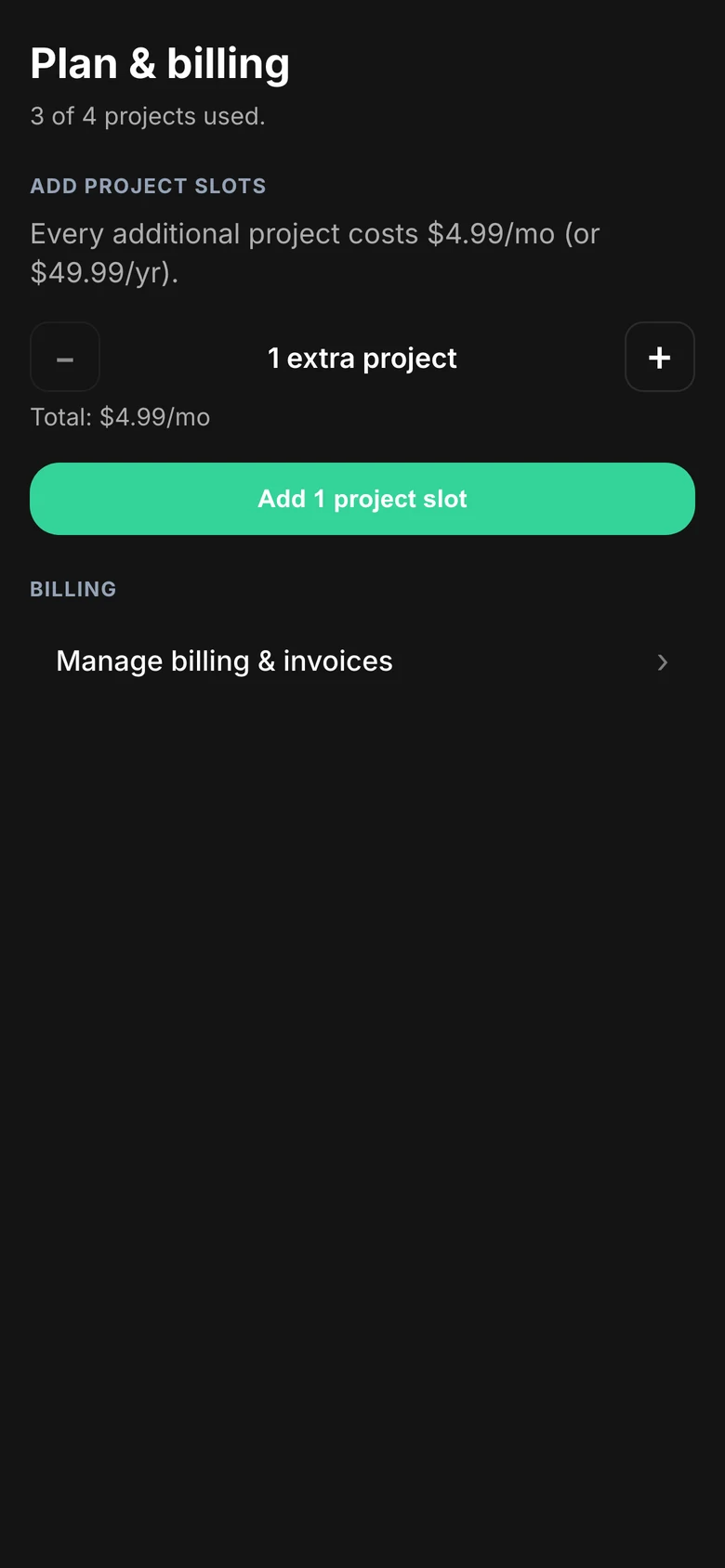
Every account includes one project for free. Each additional project costs $4.99/month or $49.99/year. This screen shows how many projects you're using and lets you buy more slots:
- Choose Monthly or Annual (only for your first purchase; after that your subscription's period applies).
- Set how many extra projects you want with − and + (1 to 20 at a time). The total updates below.
- Tap Pay with Stripe. Checkout opens in your browser. When you finish, Telegram brings you back to this screen and your new slots appear automatically. If you cancel, nothing is charged.
Once you have a subscription, the button becomes Add N project slots. Slots are added immediately with no checkout, and the difference is invoiced right away. Manage billing & invoices opens the Stripe billing portal in your browser.
Account & web access#
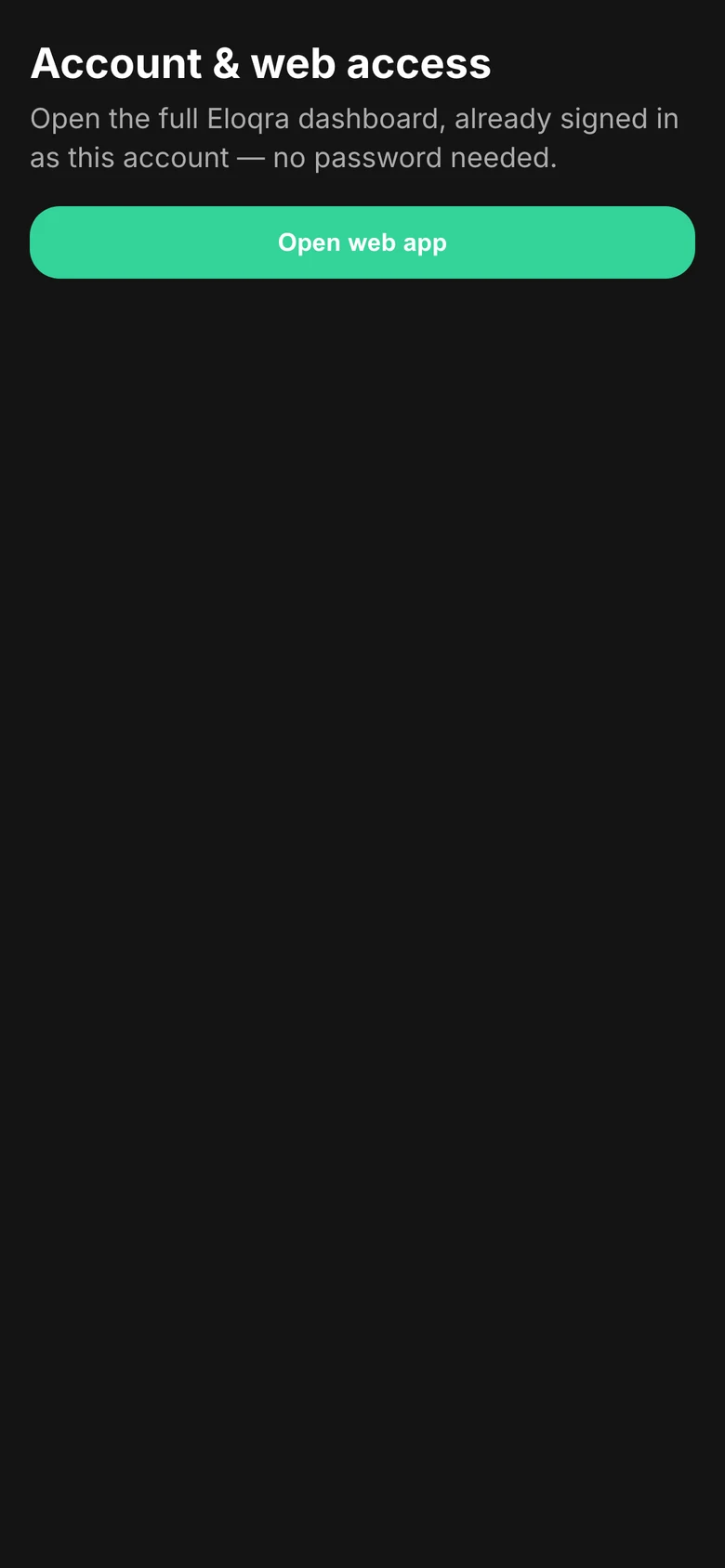
Open web app opens the full Eloqra dashboard in your browser, already signed in as this account. You don't need a password.
If your account was created from Telegram, this screen also has an email login section:
- Add email login (optional). Enter an email and a password (twice) and tap Save email & password. You can then sign in on the web on any device, without Telegram. If the email already has an Eloqra account, you'll be asked to link this Telegram to it from the web instead (Connect → Telegram, then send the code to the bot).
- Email login. Once an email is set, it's shown here and can't be changed in the Mini App. Reset password sends a reset link to that email.
Accounts created on the web manage their sign-in on the web, so they only see Open web app here.