Projects
A project is one site running Eloqra. Each project has its own chat widget and embed snippet, its own widget settings, and its own Telegram connection. If you run several sites, create one project per site — conversations from every project still land in one inbox.
How many projects you get#
The free plan includes 1 project. Every project beyond that is a Pro slot at a flat $4.99/month or $49.99/year per slot. Your free project stays free; you only pay for the extra ones. See Pricing for the full plan comparison and Plans & billing for how to add slots.
Only active projects count toward your limit, so deleting a project frees its slot. When you're at your limit:
- On the web, + Create Project opens the upgrade dialog instead of the create form — Upgrade to Pro if you're on the free plan, or Manage projects to add more slots if you already subscribe.
- In the Mini App, the + New project button becomes Upgrade to add more projects, which opens Plan & billing.
The limit is enforced on the server too, so a project can't be created over it from any surface, including the API. If a Pro subscription ends, your oldest projects up to the free allowance stay active and the rest are marked inactive.
Creating a project#
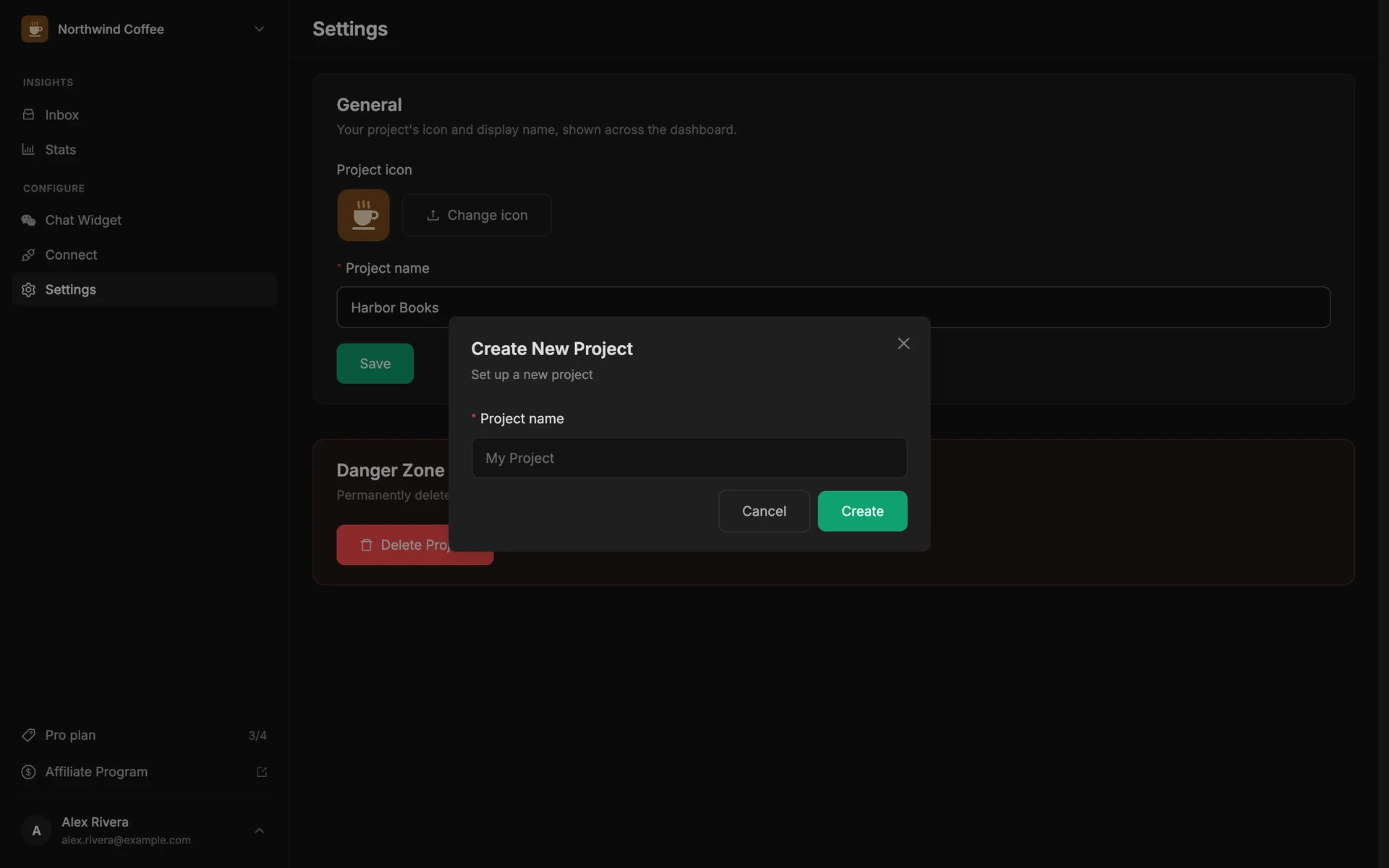
On the web: open the project switcher at the top of the sidebar and choose + Create Project. Enter a Project name — usually your site or brand — and click Create. The new project becomes your selected project and its widget is enabled right away. Next, connect it to Telegram under Connect and paste its snippet on your site.
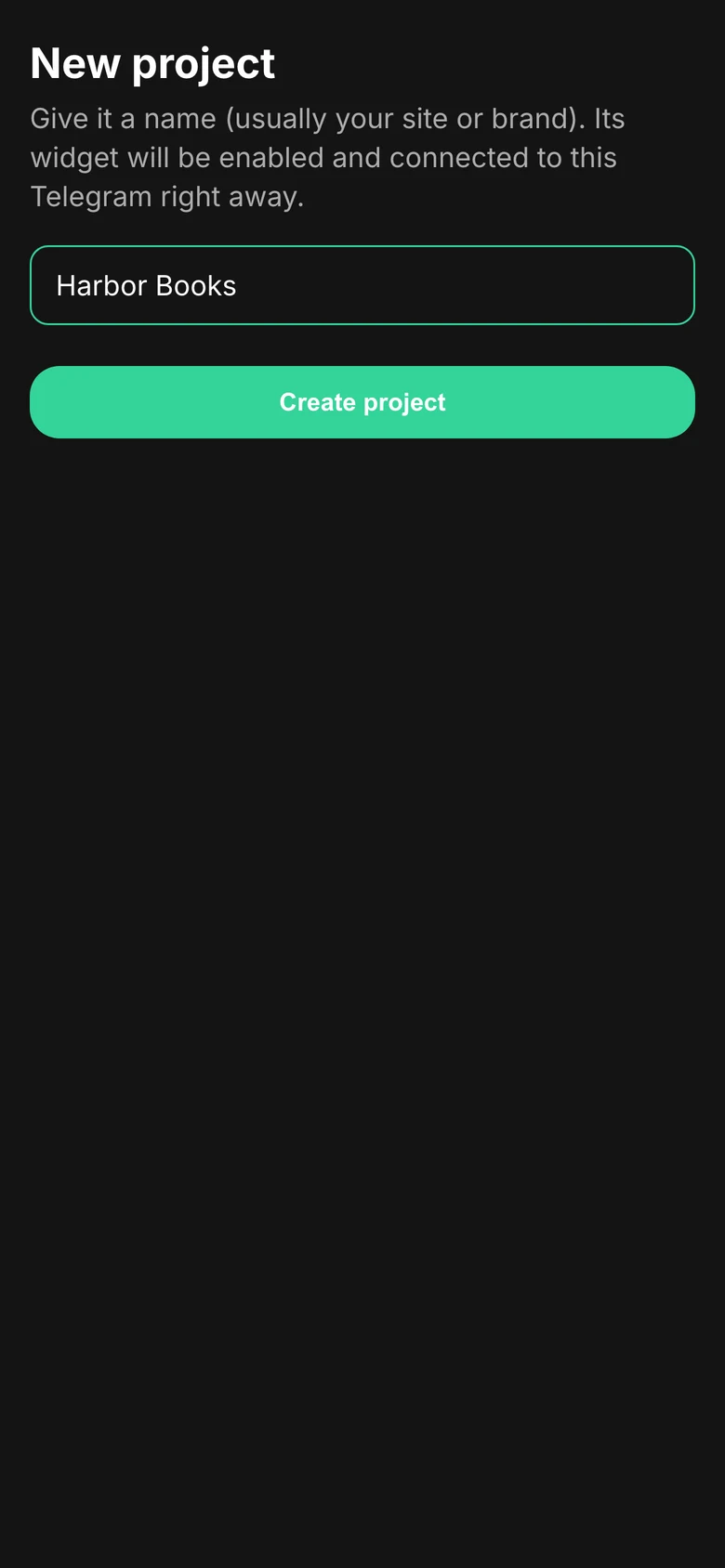
In the Mini App: tap Manage in the inbox header, then + New project. Give it a name and tap Create project. A project created here has its widget enabled and is connected to the Telegram you're using straight away, so there's no link code to send.
Switching projects and the combined inbox#
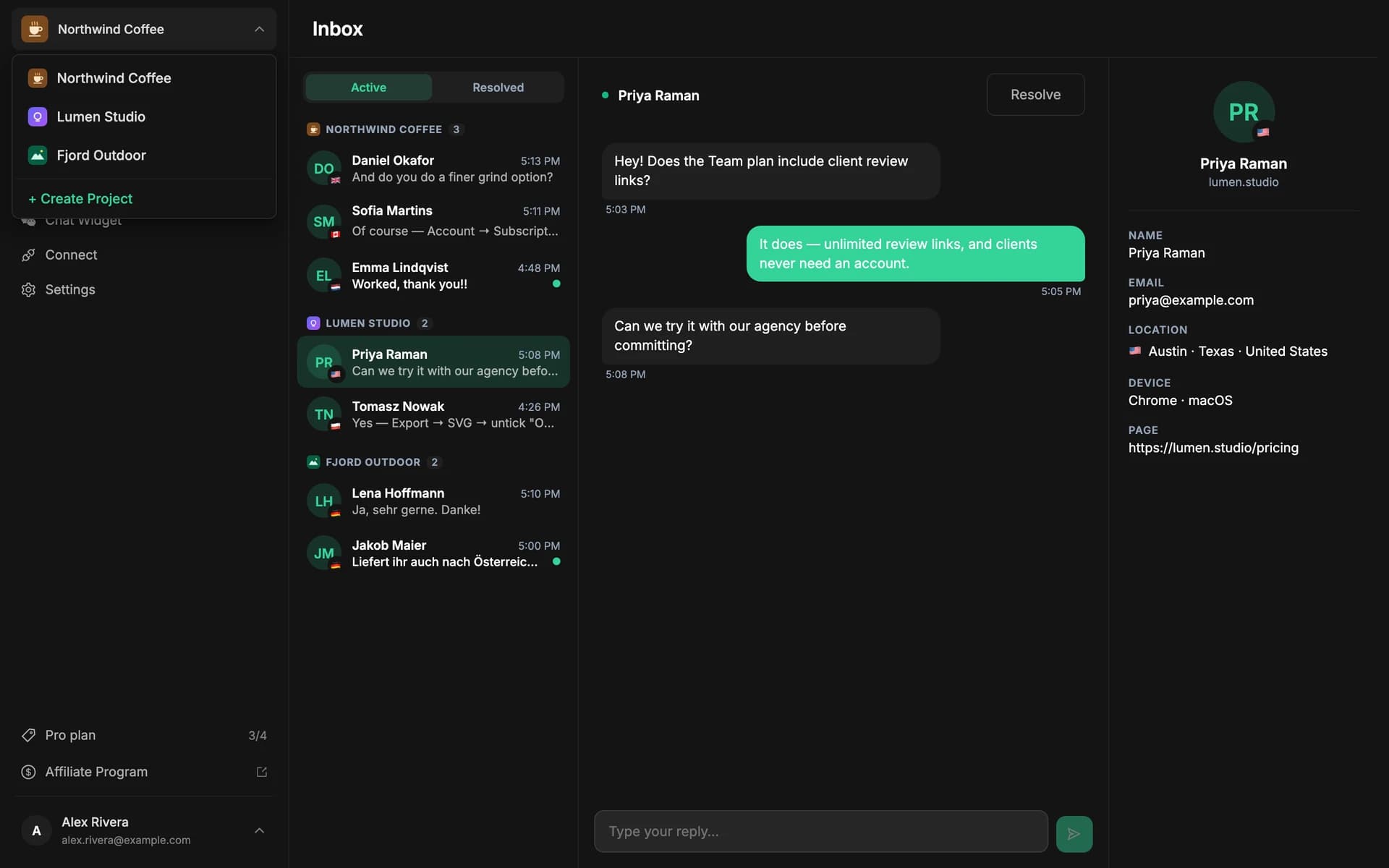
The project switcher in the sidebar lists all your projects. Pick one to make it the selected project — Chat Widget, Connect and Settings always apply to the selected project. Inactive projects are marked with a red icon.
The Inbox is not limited to the selected project: it always shows conversations from every project together. With more than one project, conversations are grouped under each project's name and icon, with a count per group.
In the Mini App, once you have more than one project, the inbox header has a switcher that shows All projects combined or a single project.
Project settings#
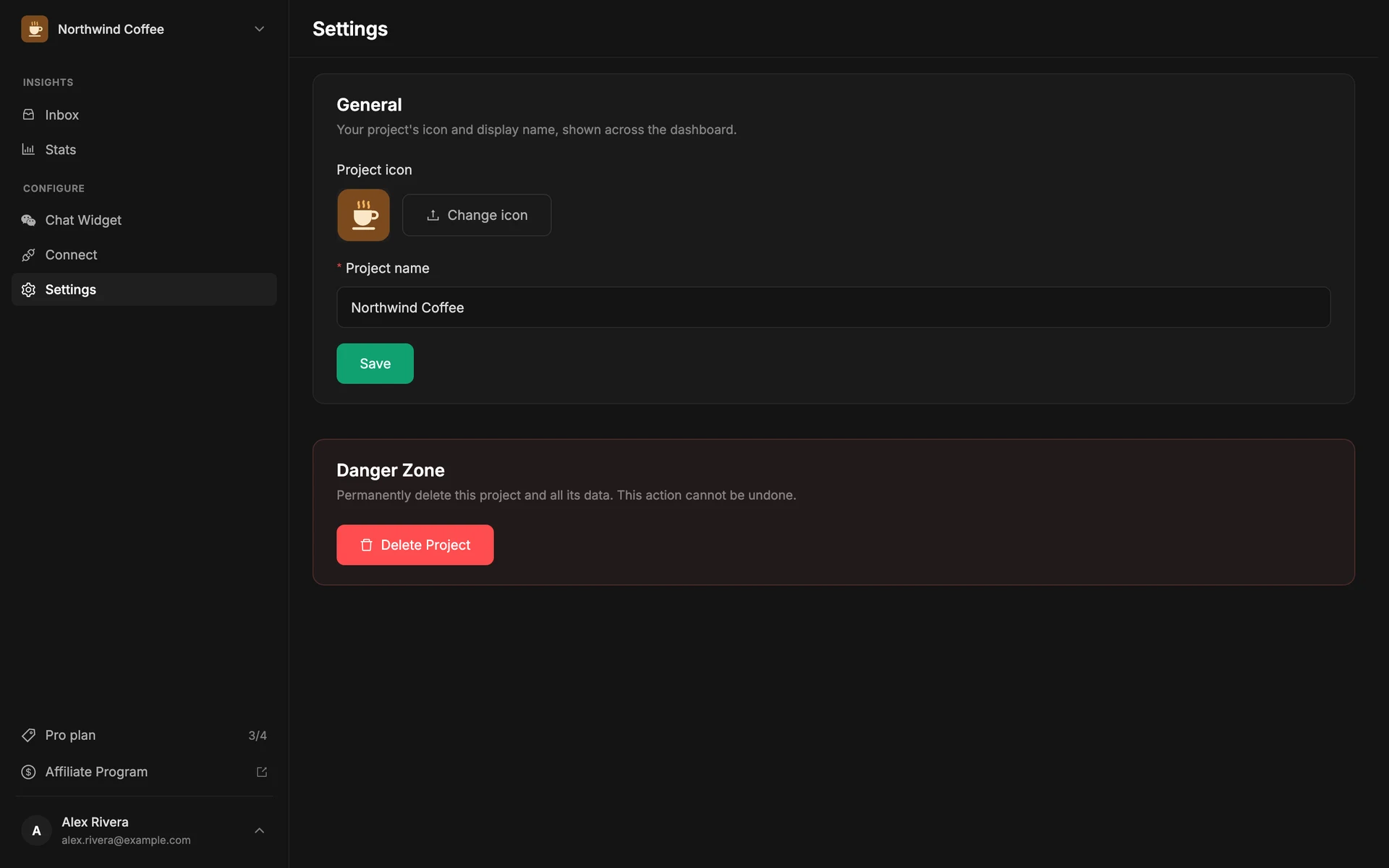
Open Settings (under Configure in the sidebar) for the selected project. The General card holds:
- Project icon — click Upload icon (or Change icon) to pick an image. It's saved as soon as it uploads and appears in the project switcher and inbox groups. Without an icon, the project's first letter is shown.
- Project name — edit it and click Save. Names are up to 80 characters.
In the Mini App, tap a project on the Manage screen to edit its Name and Icon, along with the widget's appearance and content.
Deleting a project#
Deleting a project is permanent and can't be undone. The project is removed along with its widget settings and Telegram connection, and its conversations no longer appear in your inbox. The snippet on your site stops showing the chat, so remove it from the site as well. Deleting frees the project's slot, but it doesn't change your subscription — to pay for fewer slots, see Plans & billing.
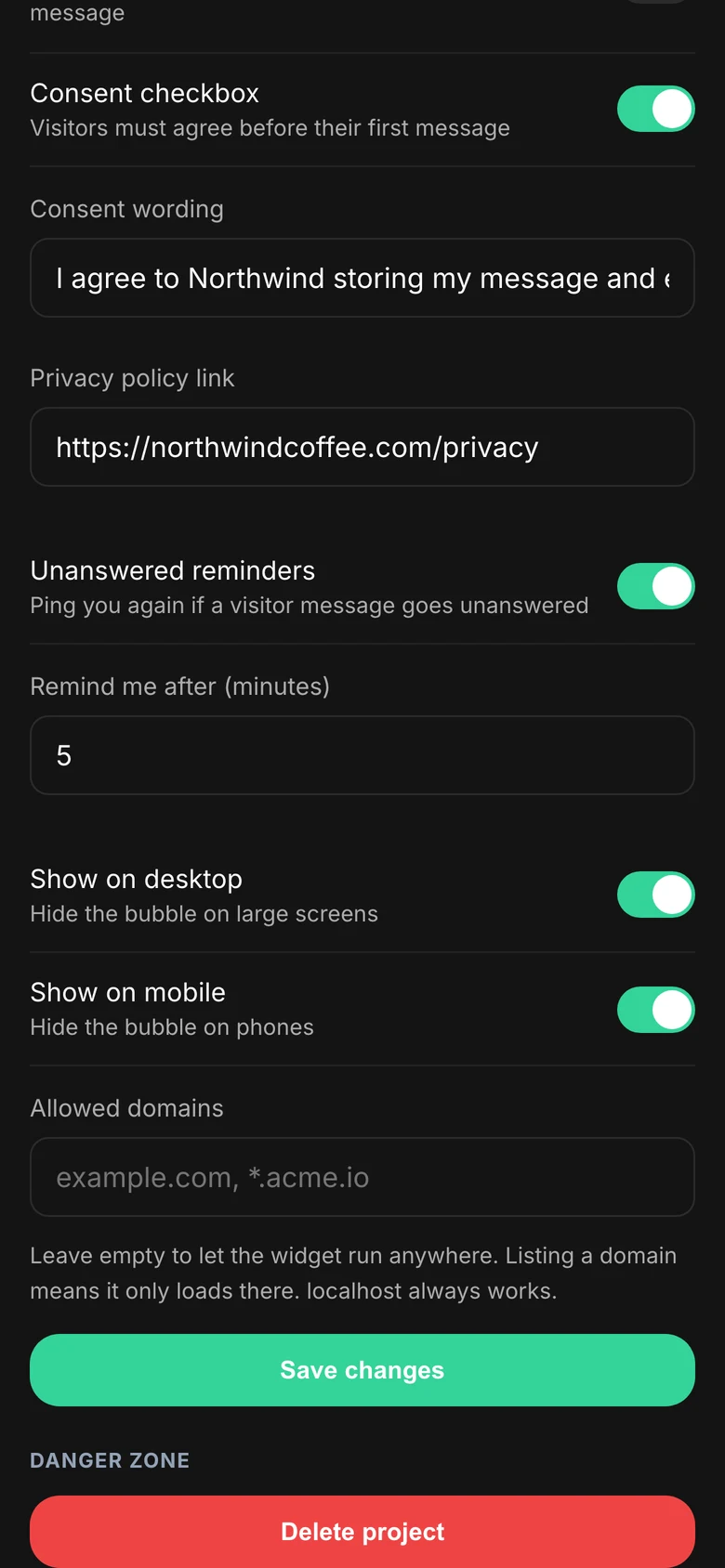
On the web: in Settings, find the Danger Zone card and click Delete Project. A dialog names the project and asks you to confirm; click Delete to finish. Another of your projects becomes the selected one.
In the Mini App: open the project from Manage, scroll to Danger zone and tap Delete project, then Yes, delete permanently (or Cancel).
Each project's Telegram connection#
Telegram is connected per project, under Connect → Telegram. For how to connect a project, see Telegram integration. Once connected, the card shows a green Connected tag and the date it was connected.
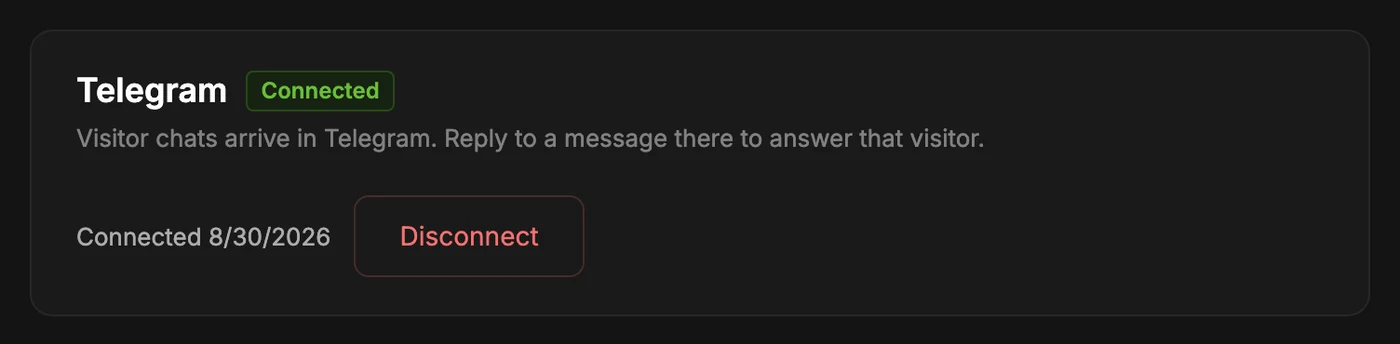
Click Disconnect to unlink the project. It takes effect immediately, with no confirmation step. After disconnecting:
- New visitor messages from this project are no longer forwarded to Telegram. Your widget keeps working, and conversations still appear in the dashboard inbox.
- Your other projects and their Telegram connections are not affected.
- You can still open the Mini App with the same Telegram account.
- The card returns to Not connected with a fresh link code, so you can reconnect — to the same Telegram or a different one — at any time.