The web dashboard
The web dashboard at chat.eloqra.app is where you set Eloqra up and, if you like, answer chats from a browser. Telegram stays the main place to reply — you never need the dashboard open to chat — but everything you do here is kept in step with your Telegram thread. This page walks through each part of it.
Signing in#
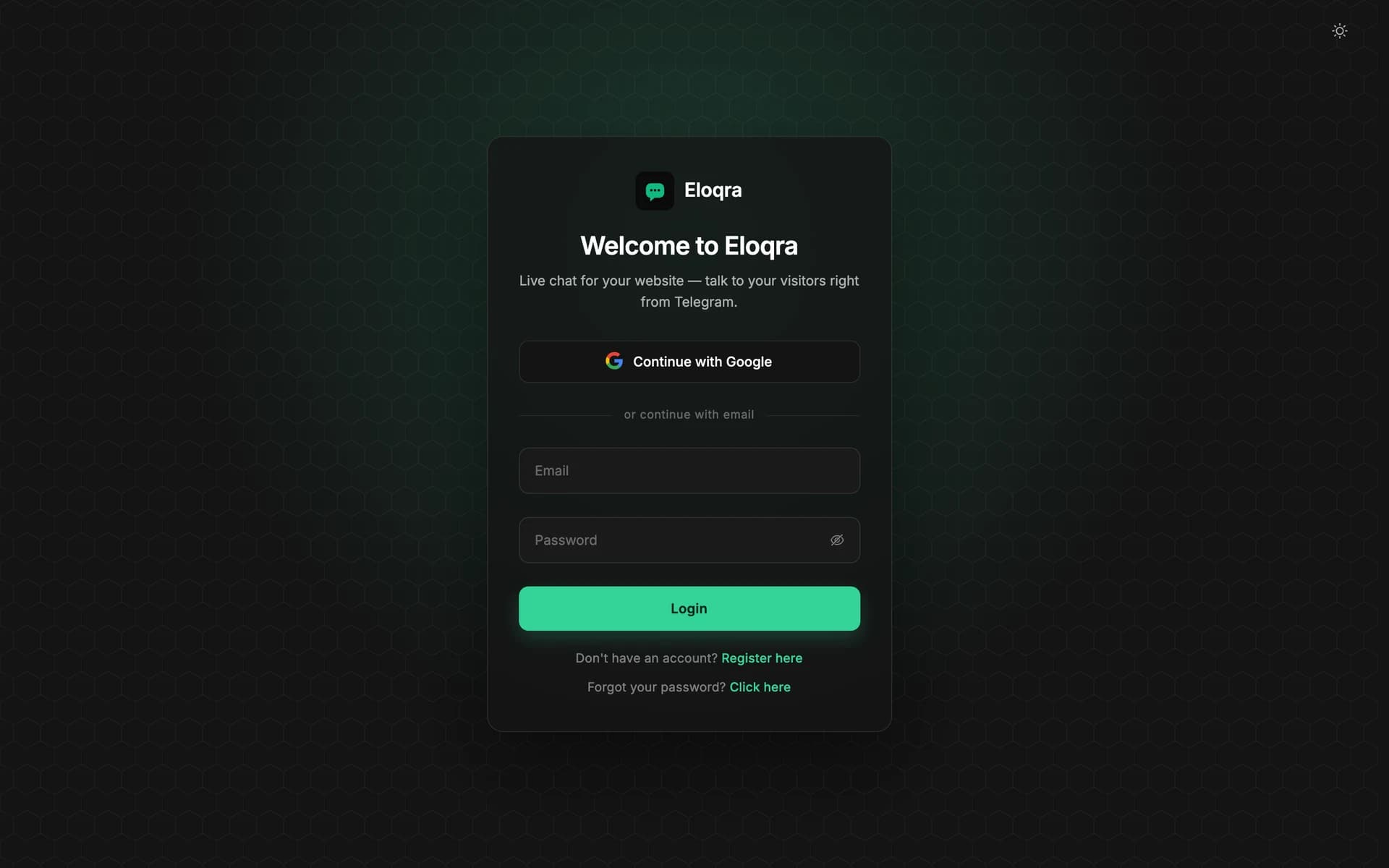
You can sign in to the dashboard in two ways:
- Continue with Google — one click with your Google account.
- Email and password — enter them under or continue with email and press Login. New here? Use Register here. Forgot your password? Use the Click here link under the form to reset it.
If you started from Telegram, you don't need a password. Open Account in the Mini App and tap Open web app — you're signed in to the dashboard in one tap. You can also add an email and password there so you can sign in directly later. Either way it's the same account. See Start from Telegram for details.
Finding your way around#
The sidebar has a project switcher at the top, then two groups of tabs:
- Insights — Inbox and Stats.
- Configure — Chat Widget, Connect and Settings.
The dashboard opens on the Inbox. The Stats and Configure tabs always apply to the project picked in the switcher; the inbox shows every project at once.
The inbox#
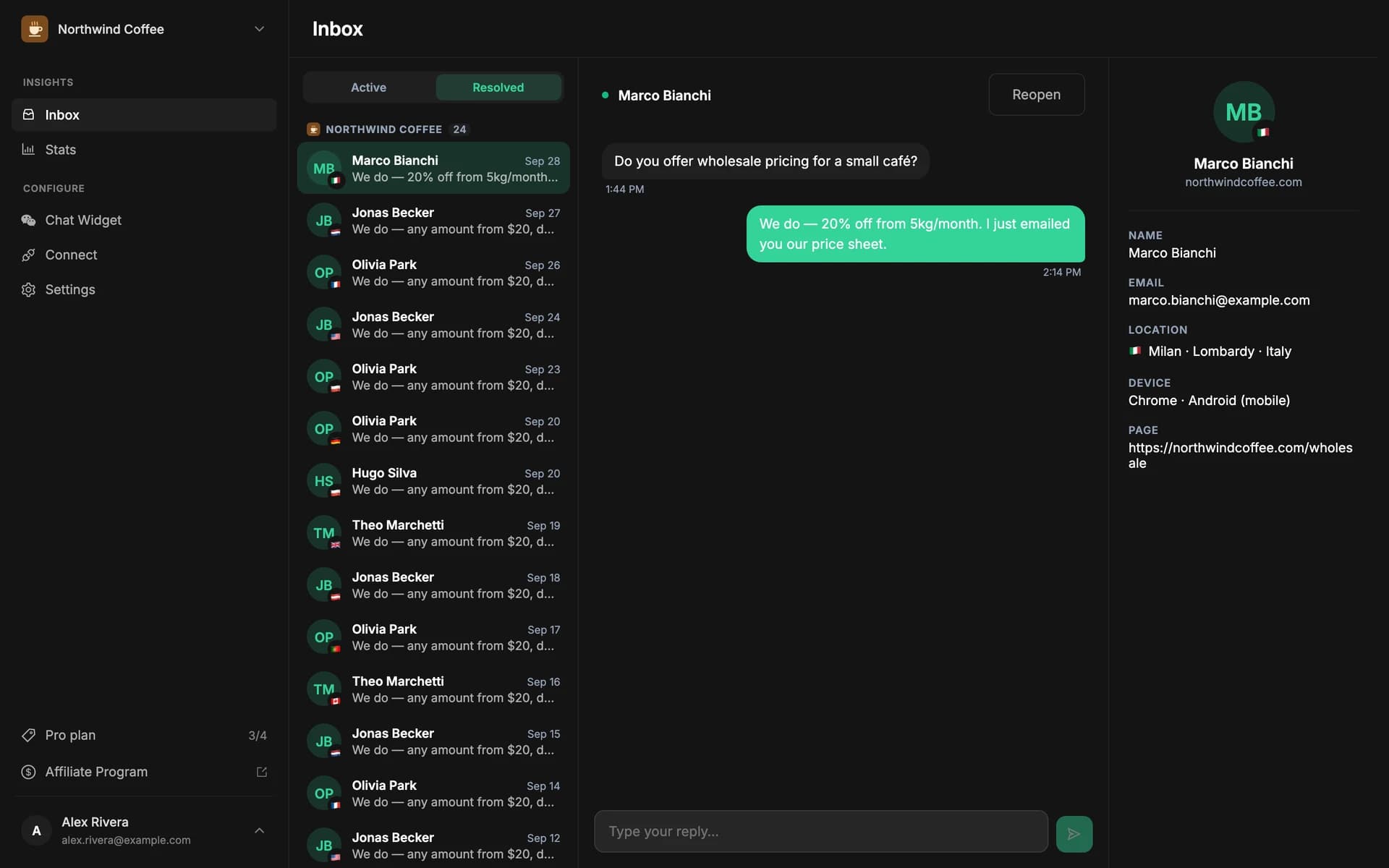
The inbox has three columns: your conversations on the left, the open conversation in the middle, and details about the visitor on the right. It checks for new conversations and messages every few seconds on its own, so you don't need to refresh.
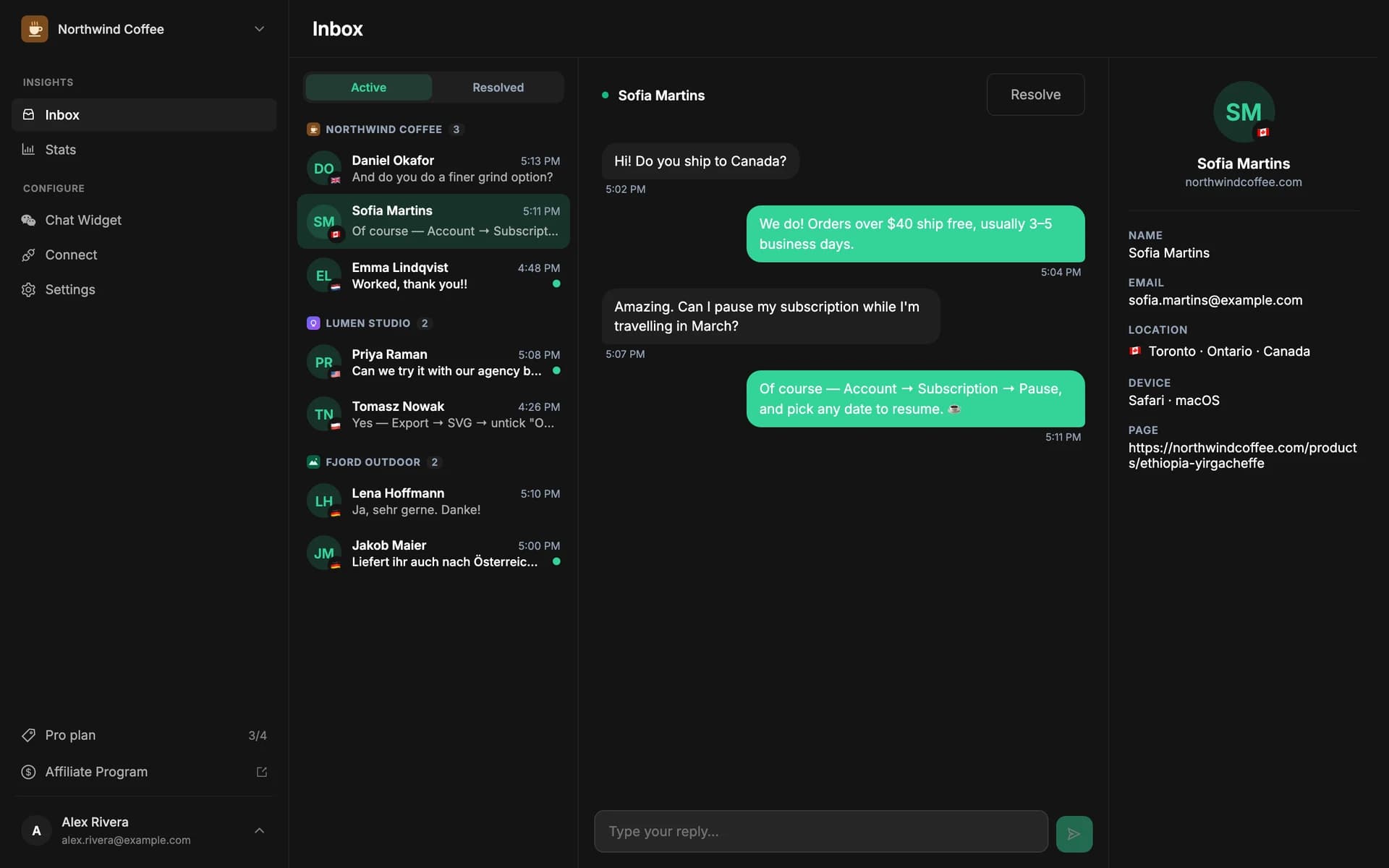
- Active and Resolved — the two tabs at the top of the list. Active shows conversations that are still open; Resolved shows the ones you've closed. The dashboard remembers which tab you were on.
- Each row shows the visitor's name (or their email, or the site they wrote from, if they didn't give a name), a flag for their country, the time of the latest message and a preview of it.
- Unread dot — a dot and a highlighted preview mean the visitor has sent something you haven't seen. Opening the conversation marks it as read.
- Typing indicator — while the visitor is typing, three animated dots appear at the bottom of the conversation. This follows the project's Typing indicators setting (on by default); see Behavior.
Several projects in one inbox#
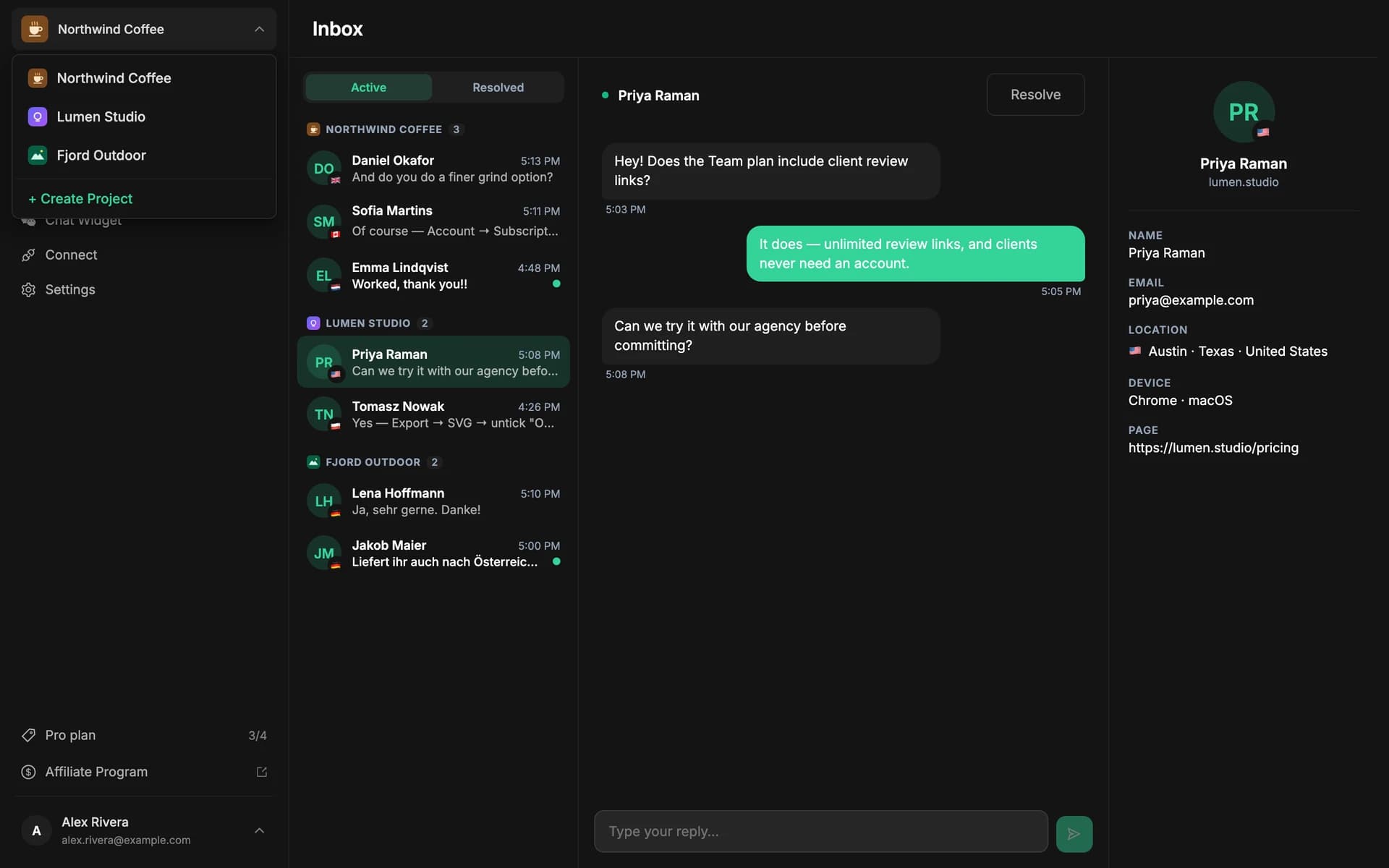
If you have more than one project, the inbox shows all of them together, grouped under each project's name with a count of its conversations. You don't have to switch projects to see new chats. Use the project switcher to change which project the other tabs configure, or + Create Project to add another site.
Replying from the web#
Type in the Type your reply… box under the conversation. Press Enter to send, or Shift+Enter for a new line. You can also click the send button. The box grows to a few lines as you type.
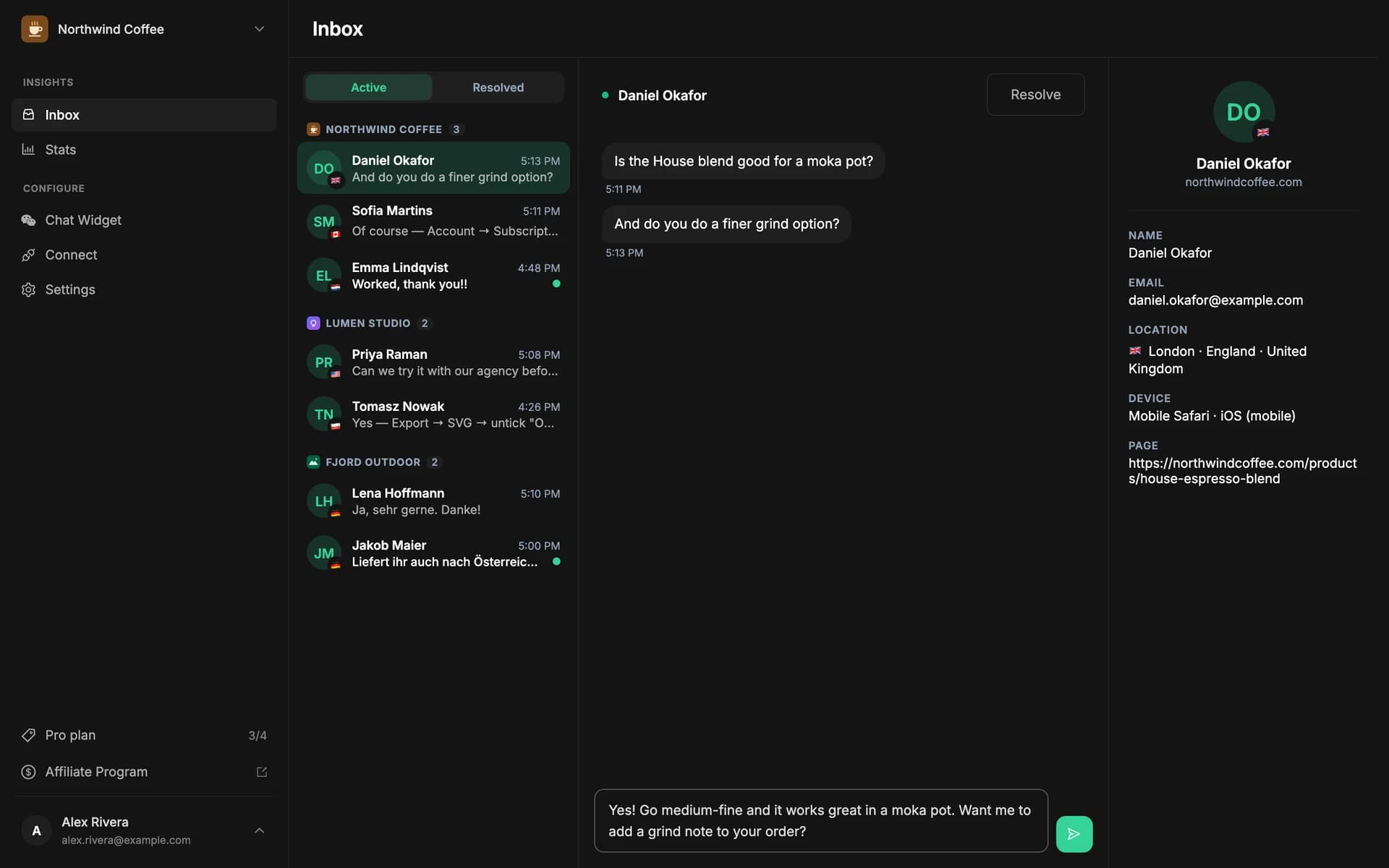
Your reply appears in the visitor's chat widget straight away. While you type, the visitor sees that you're typing too (if typing indicators are on). Sending a reply to a resolved conversation moves it back to Active. Replies are limited to 4,000 characters.
Replies are copied to Telegram#
When the project's Telegram is connected, every reply you send from the dashboard is also posted into your Telegram chat with the bot, as ↪️ You → Visitor name: your text. That keeps the Telegram thread complete, so you can switch between the browser and your phone without losing track. The copy is only a record: it doesn't count as a new message or change unread counts.
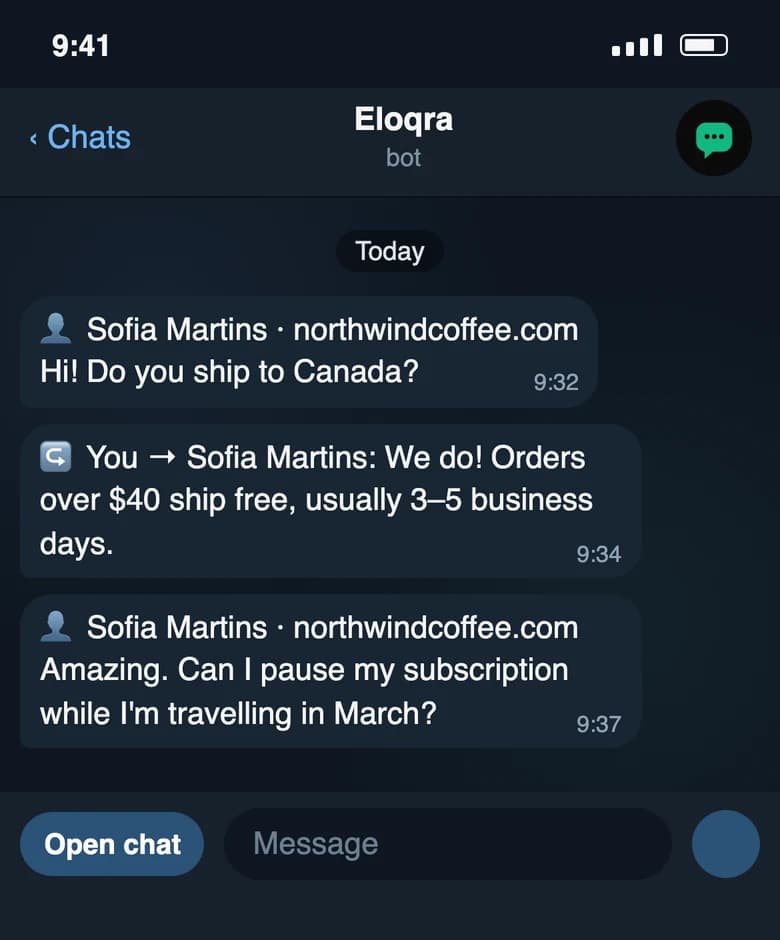
You can use Telegram's Reply on that copy to keep talking — your answer goes to the same visitor. The name shown is the visitor's name, or their email, or just Visitor.
The visitor details panel#
The right-hand panel shows what Eloqra knows about the visitor in the open conversation, with the site they wrote from under their name. Anything that isn't known shows as a dash.
- Name and Email — what the visitor entered, for example in the pre-chat form.
- Location — city, region and country, worked out from their IP address.
- Device — browser and operating system, plus “mobile” or “tablet” when they aren't on a desktop.
- Page — the page they were on when they started the chat. Hover it to see the full address.
Resolving and reopening#
When a conversation is dealt with, press Resolve in its header. It moves from Active to Resolved. To bring one back, open it on the Resolved tab and press Reopen.
Resolving a conversation:
- Stops unanswered reminders for it. If you resolve a chat without replying (spam, a duplicate, something handled elsewhere), Eloqra won't remind you about it.
- Takes it out of the running when you send a plain (non-reply) message in Telegram, so a loose message never lands in a closed chat.
- Doesn't delete anything — the full history stays on the Resolved tab.
Replying to a resolved conversation, from the dashboard or from Telegram, reopens it automatically.
The Stats tab#
Stats shows where the selected project's chats come from. It's built from the details Eloqra already records on every conversation — nothing extra is tracked. Stats are only in the web dashboard, not in the Mini App.
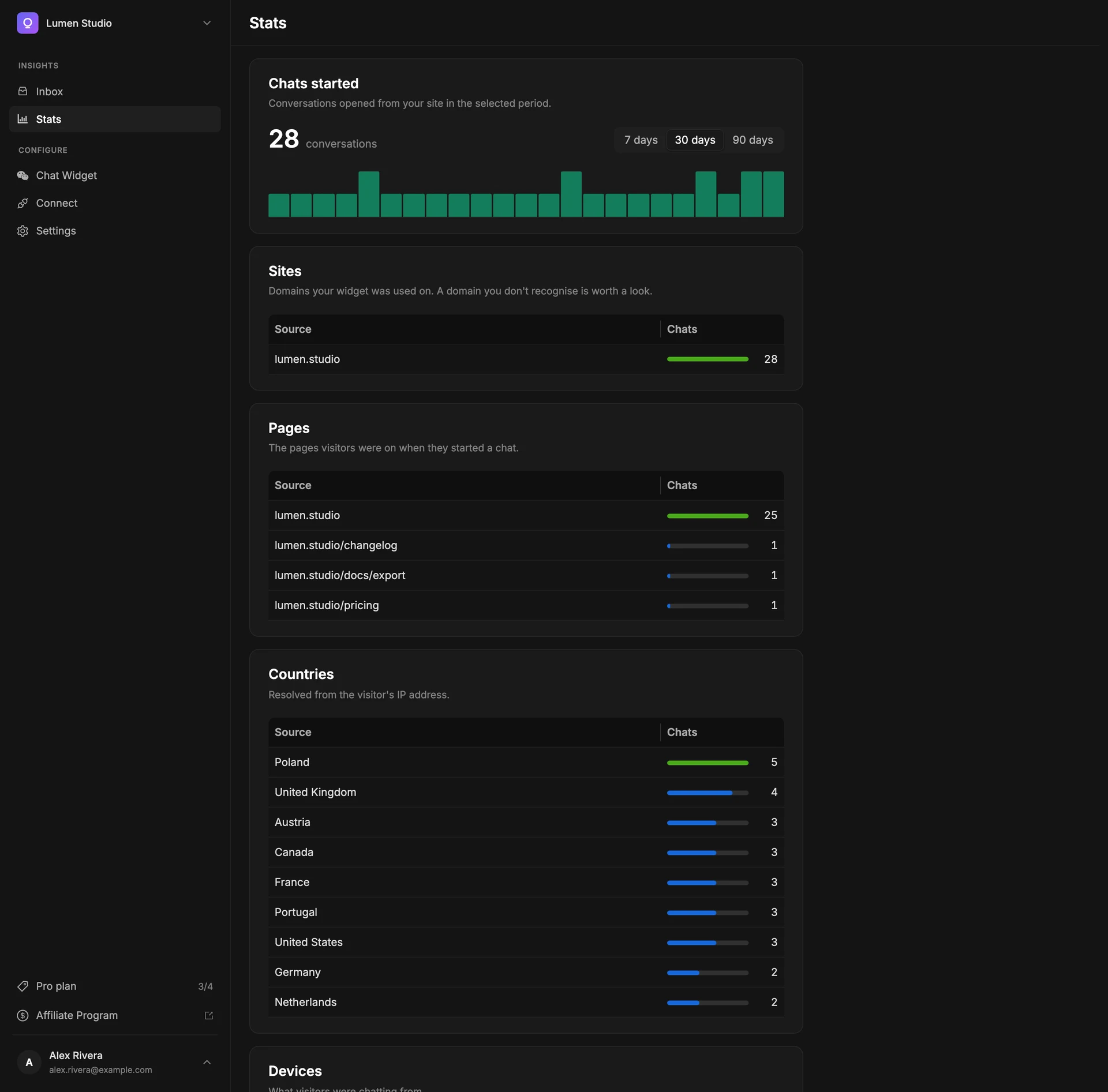
- Chats started — the number of conversations opened from your site in the period, with a bar for each day that had chats. Hover a bar to see the date and count. Use the 7 days / 30 days / 90 days switch to change the period; it starts on 30 days.
- Sites — the domains your widget was used on. A domain you don't recognise is worth a look; you can restrict the widget with allowed domains.
- Pages — the pages visitors were on when they started a chat.
- Countries — worked out from the visitor's IP address.
- Devices — desktop, mobile or tablet.
Each breakdown lists the top 10 for the period, with a bar scaled to the leader. Conversations missing a detail (for example, a location that couldn't be worked out) are left out of that breakdown only, so the tables may add up to less than the total.
The getting-started checklist#
The first time you open the dashboard, a welcome window asks if you want a tour. Choose Take the tour to be guided through setup, or I'll explore on my own to skip it for good.
The tour highlights one part of the dashboard at a time — the rest of the screen dims — and takes you to the right tab for each step. Press Got it to move on, or Back to return to the previous step. A Getting Started checklist in the bottom-right corner tracks your progress through six steps:
- Create a Project — ticked off when you actually create one.
- Configure your widget
- Preview your widget
- Connect Telegram
- Install on your site
- Open your Inbox
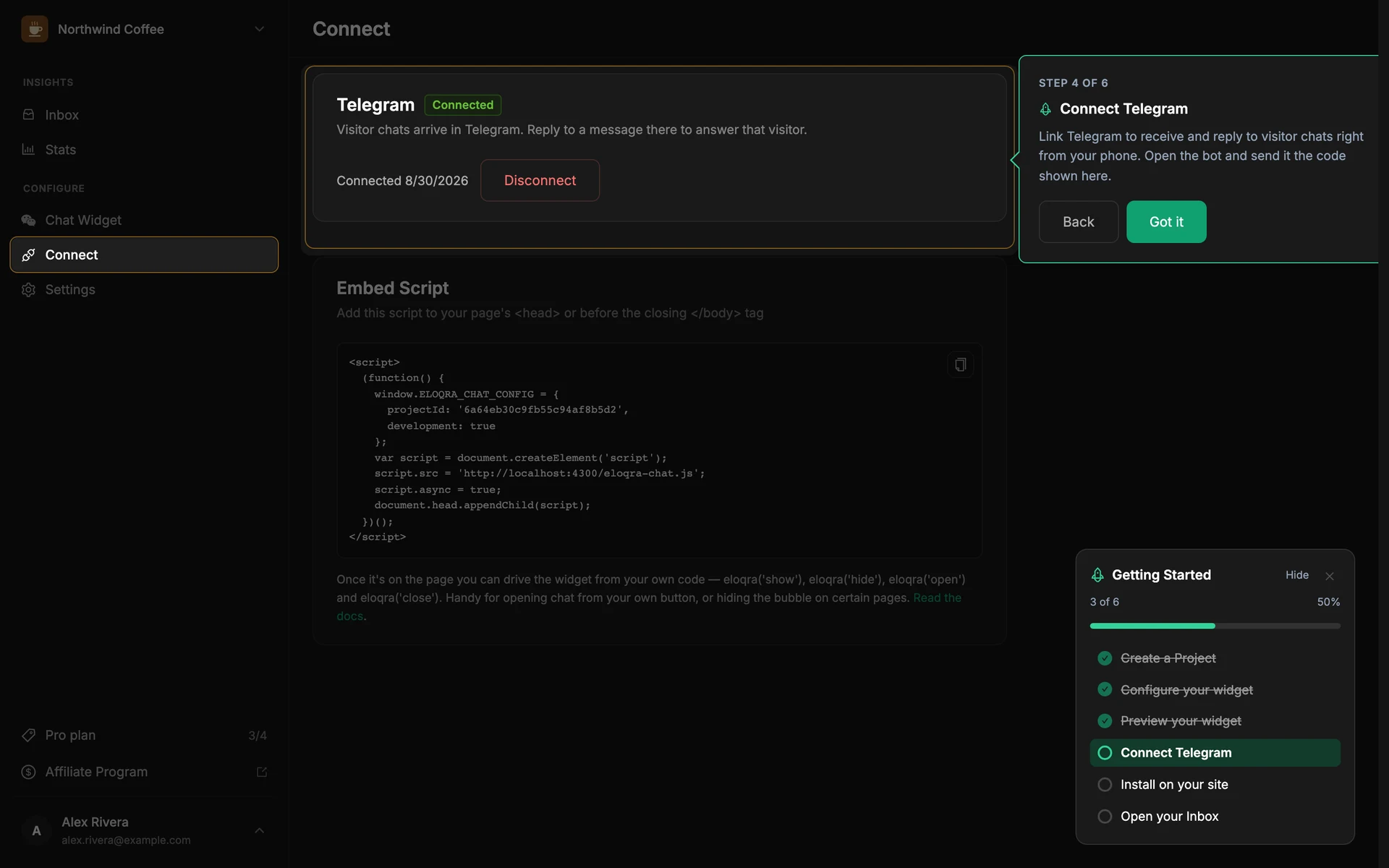
Press Hide to tuck the checklist away; a small Setup guide button stays at the top right to bring it back. Once every step is done you can close the checklist for good with its × button.
On a phone the spotlight tour is turned off. Instead you get a step-by-step guide with Previous and Next buttons that takes you to each step's page.
Where everything else lives#
- Chat Widget — how the widget looks and behaves: colours, text, your name and photo, online hours, consent, reminders and more. See Widget configuration.
- Connect — link Telegram and copy the snippet for your site. See Telegram integration and Getting started.
- Settings — the selected project's general settings, and deleting it. See Projects.
- Your account and billing — open the account menu and choose Settings. The same menu switches between light and dark mode and signs you out. See Account & billing.