September 11, 2026
·
Updated October 26, 2026
·
11 min read
What Are Chat Settings? Advanced Controls Explained
A cross-context guide to what “chat settings” really control and where they live — RCS chat controls, workplace and meeting chat options, four setting layers and precedence, encryption signals, retention/traceability, notification overrides, common failure modes, and a website live chat checklist so the right toggle actually changes the outcome you care about.

You open a settings menu, flip a switch, and the chat still behaves the same. Messages don’t arrive, notifications keep firing, or the “secure” label isn’t there when you expect it—and now you’re not sure whether you changed the wrong thing or broke something else.
That confusion gets expensive fast: missed leads, awkward internal leaks, and retention rules you didn’t mean to enable. This pillar untangles what “chat settings” means across RCS/texting, workplace chat, meeting chat, and website live chat, then gives you a simple layer-and-precedence model plus advanced controls (encryption signals, history/traceability, notification overrides) and a practical live chat checklist.
Define “chat settings”
“Chat settings” isn’t one screen. It’s a label people use for at least four different systems that all contain the word “chat,” but live in different products, accounts, and permission models. That’s why search results are fragmented: each result is correct for a different kind of chat.
Start by naming the thing you’re actually using:
RCS chat controls
Rich Communication Services (RCS) is a carrier messaging standard that upgrades SMS/MMS with features like typing indicators and richer media, typically enabled via your messaging app’s settings. On Android, that usually means Google Messages → Settings → RCS chats, where you’ll see a connection state.
- Connected: RCS features are active for your number in Google Messages.
- Connecting: the app is trying to register; you’re in setup/handshake, not “broken.”
- Trouble connecting / Awaiting retry: registration failed or is delayed; the app will attempt again.
- Not supported: your device/carrier/setup can’t use RCS here.
Turning RCS off and back on is not a harmless “reset.” Google explicitly says it’s not advised because you can be removed from group chats, and their RCS deactivation flow also warns you’ll be removed from all RCS group chats if RCS isn’t turned back on within 30 days. Remote deactivation uses a 6-digit verification code, which is a clue that this is account/network-level state—not just a local toggle.
Work, meeting, web
In workplace chat (Google Chat), many “chat settings” are really policy and retention controls. Organization-wide chat history is set in the Google Admin console under Apps → Google Workspace → Google Chat, and changing it requires Google Chat administrator privilege. Inside Chat itself, history rules affect behavior: with history on, people added later can see past messages; with history off, shared files won’t show up in the space’s Files section, and Chat may still scan messages for spam/phishing/malware.
In meeting chat (Zoom Meetings), the “settings” are session controls: hosts can restrict who can chat with whom or disable in-meeting chat entirely. Even “Host and co-hosts” still allows participants to privately message the host, and Zoom supports account-level locks that prevent users from changing the chat setting.
In website chat widgets, “chat settings” often means embed/security boundaries. For example, Intercom Messenger can be restricted to trusted domains; it requires full domain names (like “www.example.com”), and it doesn’t support localhost (it suggests 0.0.0.0 and/or 127.0.0.1 for local development).
Layers and precedence
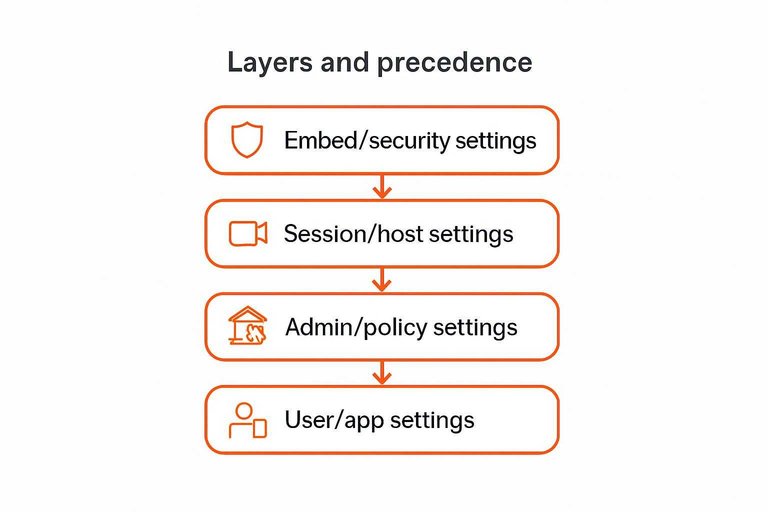
Most “chat settings” problems aren’t bugs. They’re conflicts between layers—each owned by a different person (you, an admin, a meeting host, or whoever controls the embed). When a higher layer wins, the UI can still show a toggle as “on,” yet the behavior stays “off.” That’s a policy lock / override: an admin-enforced setting that prevents users (or hosts) from changing behavior, even if the UI presents a toggle.
In Google Chat specifically, the place you look depends on what you’re trying to change. Your personal defaults live inside Google Chat itself (on web or mobile), while anything that affects everyone—like whether Chat is available at all—is controlled in the Google Admin console as a Workspace service setting. If you’re trying to “enable all chat” for a company, you’re in the admin layer, not the user layer.
| Layer | What it can realistically control | Who owns it |
|---|---|---|
| User / app settings | Notifications, per-device behavior | Individual user |
| Admin / policy settings | Service on/off, org rules, locked options | Workspace / account admin |
| Session / host settings | Who can chat in a meeting, in-session limits | Meeting host |
| Embed / security settings | Where chat can load, identity boundaries | Site/app owner |
The precedence rule of thumb is simple: the closer a setting is to the “system owner,” the more it overrides. Admin policies override user settings; meeting host controls override what participants think they’ve enabled; embed/security rules can stop chat from loading even when everything “looks enabled” in the widget config.
A fast way to diagnose “enabled but not working” is to follow the ownership trail:
-
Start where you clicked the toggle, then ask “am I the owner of this layer?” If the option is present but can’t change outcomes, you’re probably below a lock.
-
Check for an explicit lock at the admin layer. Zoom, for example, supports account-level locks that prevent users from changing in-meeting chat behavior, even though meeting-level controls exist (see Zoom’s guide on enabling or disabling meeting chat).
-
Verify the session layer isn’t narrowing behavior. In Zoom, even when chat is restricted to “Host and co-hosts,” participants can still privately message the host—so “chat disabled” may only mean “participant-to-participant chat disabled.”
-
Don’t forget notification and bot-style overrides. In Google Chat, some Chat apps can ignore Do Not Disturb by using special @notify messages, and Chat can send email reminders for messages left unread for more than 12 hours.
Once you think in layers, “it didn’t stick” stops being personal error and becomes a concrete question: which layer owns the outcome you want?
Advanced controls by outcome
When you’re digging into “chat settings,” the advanced controls are rarely about cosmetics. They’re about guarantees: will the message arrive, who can convincingly pretend to be whom, who can prove what happened later, and who gets interrupted right now.
The trick is to choose settings by the outcome you’re protecting. Encryption signals help you validate privacy and identity. Retention settings decide whether you’ll have an audit trail later. Notification overrides determine whether “urgent” actually reaches a human.
Encryption signals
End-to-end encryption (E2EE) means only the conversation participants can read message content; the service provider can’t read message contents in transit. Transport Layer Security (TLS) means data is encrypted between your device and the service’s servers, protecting against interception in transit—but it’s not the same as E2EE.
In Google Messages, the “signal” you should look for is visible behavior in the UI, not a toggle you hope is working. Google’s documentation states that RCS chats between Google Messages users are end-to-end encrypted by default, and when E2EE isn’t available, RCS uses TLS instead. That difference matters: TLS is still secure transport, but it doesn’t give you the same “only participants can read it” guarantee.
For verification mechanics, Google Messages calls out two concrete indicators for encrypted conversations: an “RCS chat” banner and a lock icon on the send button. Those are operational checks—you can confirm the state in the thread (see how to tell if a chat is encrypted).
If you’re trying to guard against impersonation inside an encrypted conversation, look beyond “it says encrypted” to whether you can verify keys. Google Messages’ Key Verifier has explicit prerequisites (including Android 10 and up, specific app versions such as Google Contacts 4.60 and Google Messages android_20250723.00_p0, plus the Android System Key Verifier app). The practical point: identity assurance is gated by device/app capability, not just by whether encryption exists.
Retention and traceability
Chat history (retention) means whether messages are stored and visible later (and to newly added participants), and what policies govern that storage.
In Google Chat spaces, history is one of the most consequential “advanced” settings because it controls who can reconstruct the past. With history on, people added later can see past messages. With history off, shared files won’t show up in the space’s Files section—even if the files were posted in the conversation.
The common mistake is treating “history off” as a blanket privacy guarantee. Retention and processing are different things: Google Chat can still scan messages for spam/phishing/malware even with history off, which means turning off history doesn’t imply “nothing touches this data.”
If your outcome is auditability, that distinction flips the recommendation. CISA’s Google Chat Secure Configuration Baseline explicitly recommends enabling history and not allowing users to change history, because it reduces obfuscation and improves traceability. In other words: privacy is not just “store less,” and compliance is not just “store more”—it’s picking the behavior you’ll need to prove later.
Notification overrides
Do Not Disturb (DND) is a status/setting that suppresses notifications—sometimes bypassed by special message types or system rules.
Notification controls are easiest to reason about as layers, because what you configure as a user isn’t always the final word:
- Baseline alerts: your defaults for mentions, replies, and reactions decide what creates a notification at all.
- Conversation-level muting: even “notify me” defaults can be neutralized by muting a space or thread, which is great for focus and terrible for time-sensitive queues.
- Out-of-app escalation: Google Chat can send email reminders for messages left unread for more than 12 hours, which changes the guarantee from “pop-up now” to “you’ll get a backstop later.”
- Bypass mechanics: some Chat apps can ignore DND by using special @notify messages, which means “I set DND” and “I won’t be interrupted” are not always the same promise.
If you’re optimizing for responsiveness, decide which layer is allowed to break through—and reserve bypass paths for the truly critical cases, because they train you to ignore everything else.
Myths and failure modes
When “chat” feels broken, it’s usually not random—it’s a constraint you can verify at the layer that actually owns the outcome: an RCS registration state, a policy/admin lock, a host/session rule, or a web embed/security boundary.
A good rule of thumb for high-intent questions like “reset chat” or “enable all chat”: don’t hunt for one master toggle. First identify which chat system you’re in (RCS in Google Messages vs Google Chat vs Zoom meeting chat vs a website widget), then verify the visible status label / lock signal that proves which layer currently has precedence.
It looks enabled, but messages don’t behave like “chat.” (RCS status is the real truth)
If you’re dealing with RCS in Google Messages, the first thing to trust is the app’s RCS chats connection status—not the presence of a toggle.
In Google Messages, the status list includes Connected, Connecting, Trouble connecting. Awaiting retry, and Not supported (Google Messages help). If you see anything other than Connected, your “chat settings” changes won’t produce the expected behavior because the registration/connectivity layer isn’t healthy.
Also note that Google states it may store identifiers such as your phone number, device identifiers, and SIM card number for about a month to keep you connected and handle temporary offline periods (RCS security documentation). That’s not a toggle you can “fix”—it’s part of how the service keeps the connection stable.
“How do you reset your chat?” (Reset the binding, not the toggle)
A real reset means re-establishing the binding at the layer that owns the outcome—and understanding the cost.
For RCS in Google Messages, “resetting” by turning RCS chats off and back on is disruptive. Google explicitly says it’s not advised to turn RCS chats on and off because doing so removes you from group chats (Google Messages help).
If you need to deactivate RCS (for example, you’re switching devices or troubleshooting a stuck registration), Google’s deactivation portal states:
- Deactivating suspends RCS features.
- You’ll be removed from all RCS group chats if RCS is not turned back on within 30 days.
- Remote deactivation requires a 6-digit verification code.
So the practical reset flow is:
- Capture what you can verify now (your current RCS status label in Google Messages).
- Make one ownership change (deactivate/reactivate or correct the underlying connectivity issue).
- Re-check the same status label until it returns to Connected.
If your problem is not RCS (for example, it’s Google Chat history or Zoom meeting rules), resetting RCS won’t touch it—because it’s the wrong layer.
“Where to enable all chat?” (There isn’t one switch—enable each layer, and check for locks)
People ask this expecting a single “enable all chat” switch. In practice, “all chat” is the intersection of multiple owners—and any one of them can block the outcome.
Use this as a fast ownership checklist:
- RCS (Google Messages): “Enabled” only matters if the status is Connected (not Connecting/Awaiting retry/Not supported).
- Google Chat (Workspace): chat history behavior can be controlled by an organization rule in the Google Admin console (Apps → Google Workspace → Google Chat) and requires the Google Chat administrator privilege to change (Google Admin documentation). If you can’t make a history setting stick, that’s usually because an org rule owns it.
- Zoom meeting chat: even if a participant sees chat “on,” the host may have limited who can message whom (and an account-level lock can prevent changes; see next section).
- Website chat widgets: “Enabled” in a dashboard doesn’t override a trusted-domain rule or an identity gate; if it doesn’t load, treat it as a domain/authorization boundary first.
“Enable all chat” becomes straightforward once you stop looking for a universal toggle and instead verify each layer’s on/off state and whether a higher layer can override it.
A toggle is grayed out (or flips back). (That’s an override/lock, not a bug)
When a setting won’t change—or changes and immediately reverts—assume an admin/policy layer owns it.
In Zoom, in-meeting chat settings can be locked at the account level, preventing users from changing meeting-level behavior (Zoom Meeting chat documentation). If you’re troubleshooting “can’t enable chat,” the fix is rarely inside the meeting UI—it’s finding and changing (or removing) the lock in the Zoom web portal (Admin Center) so the meeting-level setting is allowed to take effect.
Meeting chat is “restricted,” but certain private messages still go through. (Host-only still allows participant→host)
A common failure mode in Zoom Meetings is assuming “host-only” means “no private messages.” Zoom’s own description is more specific: the Host and co-hosts option still allows participants to privately message the host (Zoom Meeting chat documentation).
So if you’re seeing “restricted chat” but the host still receives private messages, that isn’t a contradiction—it’s the rule working as designed. The diagnostic step is to identify which routes are still permitted (participant→host is the big one), then choose a stricter meeting chat configuration if your goal is eliminating even that path.
Chat is on, but it’s not encrypted the way you expected. (Verify E2EE by the lock signal)
Treat encryption as something you verify in the conversation itself, not a promise implied by “chat enabled.”
In Google Messages, end-to-end encrypted conversations show an “RCS chat” banner and a lock icon on the send button (Google Messages E2EE documentation). If you don’t see the lock icon, don’t assume E2EE is active for that thread.
Google also clarifies that when end-to-end encryption isn’t available, RCS chats by Google use Transport Layer Security (TLS) instead (RCS security documentation). That’s still encrypted in transit, but it’s not the same security model as E2EE—so your “chat settings” expectation needs to match what the thread’s indicator is actually telling you.
Chat history feels inconsistent. (History changes what “chat” even means)
Chat history settings can change core behaviors, which can look like “chat is broken” when it’s just operating under a different retention mode.
In Google Chat, history isn’t a cosmetic option:
- When history is on, people added to a space can view past messages.
- When history is off, shared files won’t appear in the space’s Files section.
- Even with history off, Google Chat may still scan messages for spam/phishing/malware.
(Google Chat history documentation)
If you’re trying to “reset chat,” make sure you’re not really trying to reset history behavior—and if you can’t change history at all, confirm whether an organization-wide rule in the Admin console owns it.
Web chat is configured, but it won’t load (or users collide). (Treat it as a boundary problem)
When a website chat widget won’t load even though it’s “enabled” in the dashboard, the failure is often outside the widget UI:
- Trusted domains / allowlists: A domain rule can block the messenger from appearing on pages it wasn’t explicitly allowed to run on. With Intercom Messenger, for example, trusted domains must be full hostnames (e.g., “www.intercom.com”, not “intercom.com”) and localhost isn’t supported (it suggests 0.0.0.0 and/or 127.0.0.1 for local development) (Intercom trusted domains documentation).
- Identity / impersonation controls: If your provider supports identity verification via a JSON Web Token (JWT), a missing or invalid signature typically presents as “widget/chat settings are wrong,” but it’s really an authorization failure—the system refuses to accept the visitor identity.
For “reset chat” in a web widget context, reset by proving the boundary: confirm the page’s exact domain is allowlisted, then confirm identity verification (if used) is being generated and passed correctly. Only after those are correct does it make sense to revisit UI toggles.
Website live chat checklist
Live chat settings fail in layers: the widget can be “configured” and still not load, route, or protect identity. Use this checklist to make the embed reliable first, then tighten security boundaries.
-
Make the widget load predictably. Install the script once, verify it loads on every template, and test on mobile + an incognito window; if you’re using Eloqra’s single embed script, it’s a single embed script (claimed under ~5kb) that routes messages to Telegram so you can reply without keeping a support dashboard open.
-
Set Trusted domains before you publish. Trusted domains are a domain allowlist that restricts where an embedded web messenger can appear, so it won’t load on unintended sites; include both
wwwand non-wwwhostnames if you serve both. -
Turn on Identity verification (JWT) for logged-in users. Identity verification (JWT) is a mechanism for proving a web visitor’s identity to a chat provider so one user can’t impersonate another in the inbox; treat missing/invalid tokens as a “don’t attach to an account” condition.
-
Collect and route with intent. Use a Pre-chat form—a form shown before a website chat starts to collect identifying info (e.g., name/email) for follow-up and routing—and confirm notifications land where you actually respond.
-
Verify what operators need to reply fast. Ensure Visitor context—metadata attached to a web chat message (e.g., current page, device, location) used to speed up support replies—is visible in the inbox, then re-check steps 1–3 during domain changes, CDN swaps, or migrations.
Find the layer that owns it
“Chat settings” only feel random when you treat them like a single menu—what actually changes outcomes lives in layers, and the highest-owner layer wins even when a toggle looks on. The fastest fix is to name the chat you’re in (RCS, workplace, meeting, or website widget), then follow ownership upward until you reach the layer that can truly enforce delivery, permissions, and security boundaries. From there, stop “resetting” by flipping switches and instead verify with the system’s status signals (connection state, encryption indicators, history behavior, host rules, domain/identity gates) before and after you change anything. Once you work this way, “it didn’t stick” becomes a concrete question you can answer—and control.
Frequently Asked Questions
- Where do I find chat in settings?
- Search for “chat settings” inside the product that owns the conversation: your messaging app (RCS/SMS), your workplace chat (Google Chat), a meeting app (Zoom), or your website’s chat widget dashboard. If the setting you see doesn’t change behavior, you’re looking at the wrong layer (user vs admin vs host vs embed/security).
- Where do I find Google Chat settings?
- Personal Google Chat settings live in the Google Chat app (web or mobile), while organization-wide controls (like whether Chat is available and retention rules) live in the Google Admin console under Google Workspace → Google Chat. If you can’t change a setting or it flips back, an admin policy is overriding it.
- How do you reset your chat without breaking group chats?
- Don’t “reset” by flipping random toggles; reset by identifying which layer owns the outcome (account/network, admin policy, meeting host, or domain/security) and re-establishing that binding using the same status indicator you started with. Capture the current state, remove the controlling constraint, re-apply it, then verify in the conversation or session where it failed.
- Where to enable all chat for a company or team?
- “Enable all chat” is an admin-layer task: turn on the chat service and set org-wide policies in your admin console (not on individual devices). Meeting chat also has a host/session layer, so admins may need to enforce account-level settings to prevent per-meeting overrides.
- Why do my RCS chat settings look enabled but RCS still won’t connect?
- Treat it as a registration/state issue, not a broken toggle: check the RCS connection status in your messaging app and fix the underlying registration/connectivity problem at that layer. Google says it may store identifiers like your phone number, device identifiers, and SIM card number for about a month to keep you connected and handle temporary offline periods.
Make Your Chat Bubble Reliable
Once you’ve identified which layer owns delivery and identity, the next step is choosing a website widget that doesn’t add new routing or inbox complexity.
Eloqra forwards every visitor message straight to your Telegram and lets you reply from Telegram so conversations stay fast without a separate dashboard. Start on the Free Forever plan.
Written by
Eloqra
Notes from the Eloqra team on collecting testimonials and building authentic social proof.
Share: