August 25, 2026
·
Updated October 10, 2026
·
9 min read
Live Chat Widget Not Working? 9 Errors and How to Fix Them
A practical troubleshooter for live chat widgets that fail to deliver messages—triage the issue fast, verify offline routing and agent presence, confirm the correct widget ID, diagnose blocked scripts (CSP/CORS), and fix cookie-consent conditions that prevent the chat from loading or sending.

Your live chat can look “online” to visitors while messages never reach your team. That’s when leads disappear silently: the widget loads, someone types, and nothing lands in your inbox or agent console.
This troubleshooter helps you pinpoint where the chain breaks. You’ll start with quick triage to reproduce and scope the failure, then work through the most common configuration and browser blockers—offline routing, agent presence rules, wrong widget IDs, script blocking, and cookie-consent states—so messages reliably make it through.
Triage First
Confirm the problem is real before you change anything. You want a tight scope and a small evidence bundle you can trust.
Reproduce the failure
Run a controlled test so you know you’re chasing a repeatable bug, not a one-off. Use different contexts to surface blockers like cookies, extensions, and network rules.
- Open an incognito window and load the exact page.
- Send a test message and note the exact timestamp.
- Repeat on another device with a different browser.
- Repeat again from a different network.
- Record the page URL each time.
If it fails in only one context, you already have your first suspect.
Define the scope
Name the failure mode before debugging. Different symptoms point to different breakpoints in the delivery chain.
“Widget won’t open” usually points to script load, CSP, or front-end errors.
“Messages not delivered” points to routing, auth, or API failures.
“Notifications missing” points to agent presence, sound permissions, or push rules.
“Transcript not received” points to email/webhook delivery, templates, or spam filtering.
Pick one primary symptom per test, or you’ll fix the wrong layer first.
Capture key evidence
Collect only what helps an engineer reproduce and pinpoint the drop-off. Do it while the failure is happening.
- Browser and version
- OS and device type
- Widget build or snippet version
- Agent online status and availability
- Queue, routing, or assignment rules
- Console and Network errors on send
Two clean screenshots can beat an hour of guesswork.
Check provider status
Rule out upstream outages before you rip up your integration. Vendor incidents can look like your bug, especially with webhooks and email.
Check your chat provider status page and recent incident history.
Check email delivery service health if transcripts are missing.
Check webhook endpoints and their hosting status if events stopped.
If the vendor is degraded, stop debugging and start documenting impact.
Error 1: Offline Routing
Offline routing breaks when your widget says “offline,” but your system has nowhere reliable to put messages.
It’s usually a schedule mismatch, a broken offline form, or two fallbacks fighting each other.
Validate schedules
Wrong hours create “ghost offline” periods, where customers message you and nothing lands.
Check the schedule where the widget decides online versus offline.
- Verify the widget timezone matches your primary customer timezone.
- Check business hours for each department, not just the main inbox.
- Add holiday overrides, including half-days and regional closures.
- Confirm schedule rules apply to the correct widget and site pages.
- Save changes, then refresh the site and dashboard to re-sync state.
A correct schedule is invisible when it works, and painfully loud when it doesn’t.
Test offline flows
Offline mode should convert chats into something you can actually receive.
Test it like a user, not like an admin.
- Force the widget offline by adjusting hours or using an offline toggle.
- Submit a message with a real email address you can check.
- Confirm a ticket or email is created within your expected system.
- Verify the message appears in the right inbox, team, or queue.
- Reply to confirm the customer thread stays connected.
If offline messages don’t create a trackable object, you don’t have routing. You have a black hole.
Fix fallback targets
Fallback routing fails when you have multiple “just in case” destinations.
Pick one destination you’ve verified end-to-end, then simplify.
Set a single fallback target: one inbox, one ticket queue, or one email address.
Remove duplicate forwards, legacy inboxes, and abandoned shared mailboxes.
Then retest offline mode to confirm one message creates one thread in one place.
Error 2: Agent Presence
Agent presence can look “online” while routing logic treats you as unavailable. That mismatch blocks assignment, so messages never reach an inbox.
Imagine an agent marked online, but they’re invisible for chat or idle-timed out. The visitor sees a widget, but your system sees no eligible receiver. If you’re a small team, reducing how many presence states exist in the first place (for example, routing messages straight to a single Telegram inbox via a lightweight widget like Eloqra) can remove a lot of these failure modes. If you’re considering simplifying your setup, see best one-line live chat widgets. If you’re still missing messages, use chat settings vs default widget settings to rule out configuration issues before tweaking the widget.
Subsections: [
{
“subheading”: “Audit availability rules”,
“content”: “Presence is often controlled by several overlapping switches. One wrong default can make an agent appear available yet reject new chats.\n\n- Review auto-away triggers and thresholds\n- Check idle timeout behavior and resets\n- Inspect invisible mode and hidden states\n- Confirm per-channel availability toggles\n- Validate working hours and schedules\n\nTreat presence as policy, not a dot. If your workflow doesn’t truly need complex “online/away” logic, consider simplifying to an always-receiving model where visitor messages route to a real-time channel you already monitor (e.g., Telegram), which sidesteps many dashboard-driven presence edge cases.”
},
{
“subheading”: “Verify assignment eligibility”,
“content”: “Routing only assigns chats to agents who qualify. You need to confirm eligibility from the widget’s perspective.\n\n1. Confirm the agent is in the correct team or queue.\n2. Verify chat permissions and role-based access.\n3. Check the widget’s routing rules include that team.\n4. Validate skill, language, or segment filters.\n5. Test with a known visitor scenario and watch the routing log.\n\nIf routing can’t “see” the agent, presence won’t matter. Teams that route messages directly to a shared inbox (instead of through multiple queues/roles) often have fewer “eligible receiver” surprises—especially for solo founders or small SaaS teams that just need the message to hit their phone reliably.\n\n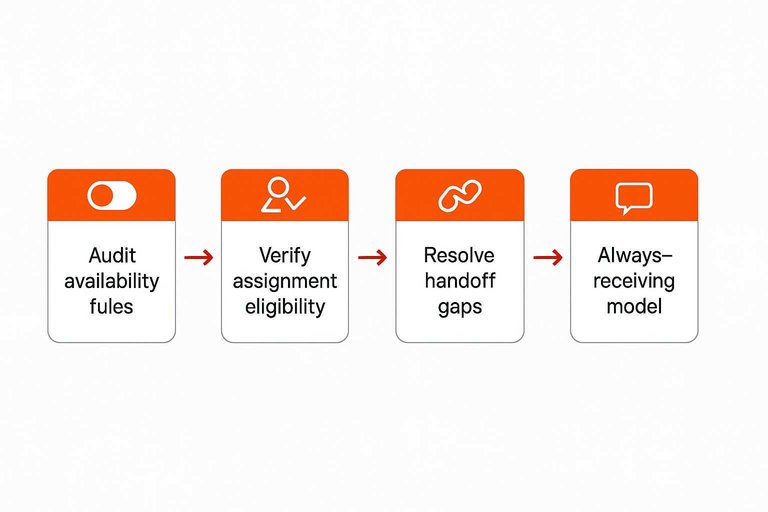 \n\n”
\n\n”
},
{
“subheading”: “Resolve handoff gaps”,
“content”: “Even with correct presence, you can still drop sessions during handoffs. Gaps happen when no one qualifies mid-chat and the system has nowhere to park the conversation.\n\nEnable queueing, set a clear max wait, and configure escalation to backup agents. Otherwise, you’re relying on perfect availability, which never holds. If you don’t actually need live handoffs, an alternative is to treat chat as a fast message channel: capture basic context and respond asynchronously from a single inbox, which can be easier to keep consistent across multiple sites.”
}
]
Error 3: Wrong Widget ID
Your chat widget can look fine and still send messages to the wrong place. One swapped ID, and you’ll be watching an empty inbox while customers think they contacted you.
Confirm snippet source
You’re checking one thing: does the widget ID on the page match the ID in your admin panel.
- Open your chat admin and copy the widget or app ID.
- View page source and search for your chat snippet.
- Locate the widget ID in the script config or URL.
- Compare both values character by character.
- Fix the mismatch and publish the change.
Treat the ID like a bank account number. One wrong digit sends everything elsewhere.
Check environments
Staging and production mix-ups are common because both widgets load cleanly. The giveaway is messages landing in a test inbox or a different property.
Check your admin for environment settings and allowed domains. Then verify production pages use production keys, and staging pages use staging keys.
If you can’t prove which environment you’re on, you’re debugging blind.
Remove duplicate installs
Duplicate installs create a race where the “wrong” widget wins. One comes from your tag manager, another is hardcoded, and both look legitimate.
- Search Tag Manager for chat-related tags
- Search templates for the embedded snippet
- Check plugins that inject scripts
- Remove extras and keep one install
- Retest with a fresh page load
Pick one source of truth, or you’ll keep chasing ghost inboxes.
Error 4: Blocked Scripts
Blocked scripts stop your widget from loading, connecting, or sending at all. The culprit is usually an ad blocker, a strict CSP, or a network filter upstream. Treat it like connectivity, not “the chat is broken.”
Run clean tests
You need one baseline session with zero interference, then you compare. That isolates blockers fast.
- Open an Incognito/Private window with extensions disabled.
- Test the widget end-to-end: open, type, send, confirm receipt.
- Repeat the same test on a mobile device over cellular data.
- Run the test again in your normal browser profile.
- Compare what fails: load, open, or send.
If one environment works and one fails, you’re looking at a blocker, not a widget bug.
Inspect CSP and CORS
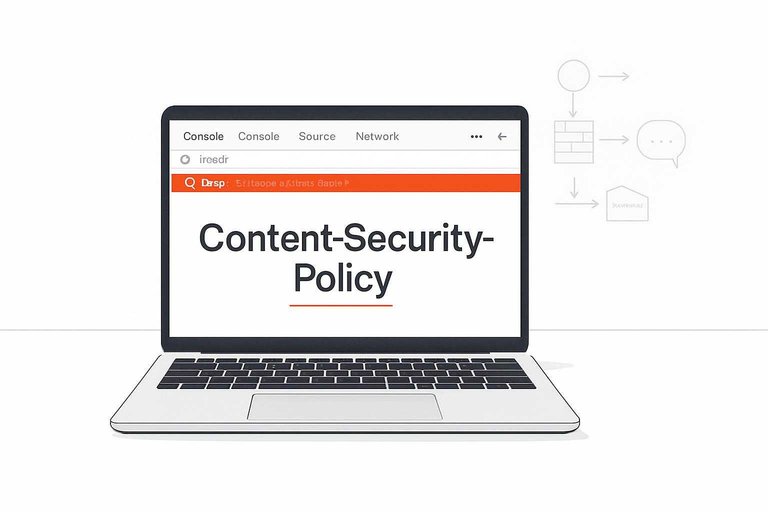
CSP and CORS failures look like “nothing happens,” but the browser is shouting in DevTools. You’re checking policies that prevent scripts, frames, or network calls.
- Open DevTools Console and reload the page.
- Search for “Content-Security-Policy” violations and note blocked directives.
- Verify
connect-srcallows your chat API and websocket endpoints. - Verify
frame-srcallows any embedded chat frame, if your vendor uses one. - Check Network for CORS errors on chat requests and preflights.
When the console shows a blocked directive, your fix is in policy, not JavaScript.
Allow required domains
Once you’ve identified what’s blocked, whitelist the exact domains your chat vendor needs. That usually includes the loader script domain, a CDN domain for assets, an API domain for message sends, and a websocket domain for realtime updates. Add those domains to your CSP (often script-src, connect-src, and sometimes frame-src), then mirror the same allowances in any firewall, proxy, or network filter.
Don’t guess. Pull the domains from the blocked-request list in DevTools, then re-test message delivery until the send call succeeds. For concrete examples, see how to manage your site’s Content Security Policy.
Error 5: Cookie Consent
Consent tools can load your chat widget but still block the parts that deliver messages. The usual culprits are blocked identifiers, blocked storage, or blocked network calls tied to “non-essential” categories.
Map consent categories
Misclassified consent is a silent failure mode, especially when chat gets lumped into “marketing.” You need to know what category controls the script, storage, and outbound beacons.
Chat touchpoints to map:
- Script tag load for the widget
- Local storage and cookies
- WebSocket and fetch calls
- Third-party domains and CDNs
- PostMessage and iframe usage
If chat needs “marketing” consent to function, your taxonomy is already broken.
Test consent states
Run the same chat flow under each consent state and watch what actually changes.
- Clear cookies and storage, then load with no consent.
- Send a test message and inspect network requests for blocking.
- Grant only “functional” consent and repeat the message test.
- Grant full consent and confirm identifiers and requests persist.
- Compare storage keys and request payloads across all states.
You’re looking for the first state where messages reliably leave the browser.
Adjust consent triggers
Once you know what’s blocked, change when chat loads or how it’s classified.
Common fixes:
- Load chat only after required consent fires
- Classify chat as “functional,” not “marketing”
- Split analytics from chat delivery scripts
- Whitelist required chat domains in consent rules
- Document the compliance rationale in your CMP
Treat delivery as functional, then layer tracking on top if you want it.
Error 6: Telegram Delivery and Notification Failures
Sometimes the website live chat widget is working (the bubble loads, messages send, visitor context appears), but nothing hits your phone — or it arrives without a notification. In Telegram-based routing, the last mile is Telegram itself: bot permissions, chat membership, connection mode, and platform limits can all stop delivery even when the widget is healthy.
Use this section when your on-site chat shows “sent” (or the visitor can continue typing), but you’re not seeing new messages in Telegram or you’re not getting alerted.
Bot muted or notifications disabled
Symptom: Messages arrive in Telegram eventually (or you find them later), but you never get a push notification.
What to check:
- Open the chat with the bot (or the group/thread where messages land) and confirm notifications aren’t muted for that chat.
- Check Telegram-wide notification settings on the device you rely on (Android/iOS/Desktop can differ).
- If you use multiple Telegram clients, verify you’re looking at the same account and the same destination chat.
Fix: Unmute that specific chat (or the group/topic), re-enable notifications, and send a test message from your site to confirm you get a push.
Bot blocked by the operator
Symptom: Nothing new arrives, and replies from Telegram no longer reach the website.
What to check: If the bot was blocked by the Telegram user who should receive messages, Telegram will not deliver new bot messages to that user.
Fix: Unblock the bot in Telegram, then run the connect/link flow again if required (many setups require a fresh handshake after a block/unblock).
Bot removed from a group or missing permissions
Symptom: You’re routing chats to a Telegram group, but messages stopped after someone changed group settings.
What to check:
- Confirm the bot is still a member of the destination group.
- If you route into a group/topic setup, confirm you’re watching the right topic.
- Ensure the bot is allowed to post messages in that group (admins can restrict posting).
Fix: Re-add the bot to the group and grant permission to send messages. If your routing expects a specific group/chat ID, re-select the destination in your console/mini app and re-test.
Webhook or polling disconnect (delivery pipeline stalled)
Symptom: On-site messages appear to send, but Telegram receives nothing until a reconnect/restart, or delivery is intermittent.
What to check: Telegram integrations typically rely on either webhooks (Telegram pushes updates to a server endpoint) or polling (the server periodically fetches updates). If that connection stalls, messages can back up or fail.
Fix:
- Trigger a fresh test message after you re-open your operator console/mini app (or re-run the Telegram connect step) to force a new handshake.
- If you recently changed domains, SSL, or anything that could affect inbound requests to your integration endpoint, verify the integration was reconnected after the change.
Tip: Treat “works sometimes” as a connectivity/handshake clue rather than a widget issue.
Telegram message rate limits and burst traffic
Symptom: Everything works in low volume, but during bursts (launches, ads, or spam), Telegram messages start failing, arrive delayed, or you see gaps.
What to check: Telegram applies limits to how quickly bots can send messages. Even if your widget accepts every visitor message, the Telegram side may throttle delivery.
Fix:
- Reduce bursts where possible (for example, add a simple pre-chat form to slow down automated spam and capture contact details).
- If you suspect abuse, add lightweight friction (name/email capture or a short prompt) so genuine leads still get through while automated bursts drop.
How to confirm: Send a handful of test messages spaced out over time. If spaced messages deliver reliably but bursts don’t, you’re likely hitting Telegram-side throttling rather than a website issue.
Troubleshoot Telegram-Side Blockers (When the Widget Sent, but You Never See It)
Sometimes your website live chat widget is working correctly: the visitor message is created and forwarded, but something on the Telegram side prevents it from appearing where you expect.
Use this checklist when:
- Visitors say they sent a message, but nothing shows up in Telegram.
- You can see some chats arrive, but “certain ones” never do.
- Messages used to arrive, then suddenly stopped after you changed Telegram settings, moved a chat, or reorganized admins.
The goal here is to confirm which Telegram destination should receive the message (DM, group, channel) and whether Telegram is currently allowing delivery/notifications to that destination.
1) Bot permissions and admin rights (groups/channels)
If your routing ends in a Telegram group or channel, delivery can fail silently when the bot no longer has the right permissions.
Check:
- Is the bot still in the group/channel? If someone removed it, forwarding can’t land there.
- Is the bot still an admin (when required)? In many setups, bots need admin rights to post reliably in groups/channels.
- Did you restrict who can post? If the group/channel is configured to limit messages (for example, “only admins can post”), ensure the bot is included in whatever role is allowed.
Fix:
- Re-add the bot and re-grant the minimal permissions it needs to post messages.
- If you recently changed group/channel permissions, temporarily loosen restrictions to confirm whether posting starts working again, then tighten back carefully.
2) Chat migration and “new group” IDs
If you upgraded a group (or it was converted/migrated), Telegram can treat it as a different destination. Routing that used to hit the old chat may now be pointing at something that no longer exists (or no longer accepts messages).
What to look for:
- You previously routed to a group, then later created a “new” group, upgraded it, or migrated members.
- Messages still arrive somewhere else (for example, your own direct messages) but not into the group you expect.
Fix:
- Re-check the currently configured Telegram destination and re-link it to the current group/channel.
- If you have multiple similar groups (common with agencies and multi-site setups), confirm you didn’t accidentally route the project to a lookalike group name.
3) The human factor: user blocking, leaving, or restricting DMs
If forwarding is intended to reach you via direct messages, Telegram-side relationships can stop delivery.
Check:
- Did you block the bot (or the sender) at some point? A block can prevent messages from appearing.
- Did you archive/delete the chat thread? Messages may continue, but you won’t notice them in your main list.
- Are you expecting messages in a personal account but connected a different one? It’s easy to link the “wrong Telegram” if you have multiple accounts.
Fix:
- Unblock and restart the chat thread with the bot/account that should receive the messages.
- Confirm which Telegram account is connected (especially if you use multiple profiles on desktop/mobile).
4) Notification settings that hide new messages (but delivery is fine)
A surprisingly common “messages not reaching you” report is really messages arriving with notifications disabled, so you never see them.
Check:
- Muted chats: Is the target DM/group muted?
- Notification exceptions: Are there per-chat overrides (silent notifications, no preview, etc.)?
- Focus/Do Not Disturb: OS-level settings can hide alerts even when Telegram receives the message.
- Telegram folders/archived chats: If Telegram auto-moves chats (or you manually archived them), new messages can be out of sight.
Fix:
- Temporarily enable loud notifications for the specific chat destination.
- Unarchive the chat and pin it while debugging so you can’t miss new arrivals.
- Send a test message from the website and then check Telegram’s chat list (not just notifications).
5) Verify the destination by sending controlled tests
To isolate Telegram-side blockers quickly, run two tests and compare outcomes:
- Website → Telegram test: Send a short message from the widget while you watch Telegram on a second device/desktop client.
- Telegram → Website test: Reply from Telegram and confirm it appears back in the visitor chat.
Interpretation:
- If Telegram → Website works but Website → Telegram doesn’t, focus on the Telegram destination/permissions/notification visibility.
- If neither direction works, it’s more likely a project/linking/config issue (not Telegram notifications).
Keep tests simple (one destination, one account, one group) until it’s working end-to-end, then add complexity (multiple agents/groups/sites) back in.
Run a 10‑Minute Message Delivery Check
- Reproduce the issue in a clean session (incognito + no extensions) and save evidence: timestamp, page URL, browser, console errors, and network failures.
- Confirm the widget is the right one for that site and environment: snippet source, widget/app ID, and no duplicate installs via tag manager or hardcoded scripts.
- Validate routing end-to-end: office hours schedules, offline fallback targets (email/ticket/webhook), and that at least one eligible agent is truly available and assignable.
- Verify the browser can load and send: allow required domains in CSP, ensure blocked third-party scripts aren’t preventing initialization, and test consent states to confirm chat works after the right category is granted.
Frequently Asked Questions
- How can I test whether my website live chat widget is actually sending messages end-to-end?
- Send a test message from a normal browser session and a second test from an incognito window on a different network (mobile hotspot) to rule out cached state and network filtering. Verify delivery in the final inbox destination (email/CRM/helpdesk) and keep the chat transcript ID or timestamp for support.
- Why do website live chat widget messages arrive late or in bursts instead of instantly?
- Delayed delivery is usually caused by browser tab throttling, service worker/push settings, webhook retries, or inbox-side rate limits rather than the widget UI itself. Check your provider’s delivery logs and confirm that notifications/webhooks are firing in real time while the page is open.
- Can a website live chat widget break only on certain pages (checkout, app subdomain, or landing pages)?
- Yes—page-specific scripts, different CSP headers, iframe embeds, or running the widget on another domain/subdomain can block requests or send conversations to the wrong context. Compare network requests and console errors between a working page and the failing page to pinpoint what’s unique.
- Do I need a dedicated inbox/helpdesk for a website live chat widget, or can messages go to a simpler channel like Telegram?
- You don’t need a full helpdesk if your main goal is fast replies—some tools route chats directly to messaging apps so you can respond from your phone. For example, Eloqra sends each visitor message to Telegram and supports two-way replies without keeping a support dashboard open.
- How do I monitor and prove message delivery issues with a website live chat widget over time?
- Enable provider-side logs (delivery attempts, webhooks, routing decisions) and add client-side monitoring for JavaScript errors plus a synthetic chat test from an uptime tool. Track failures by page URL, browser, and country to spot patterns quickly.
Never Miss a Chat Message
Fixing widget routing, presence, and script issues is doable, but it’s easy to lose leads when messages slip through during busy hours.
Eloqra sends every website chat straight to Telegram with a lightweight script and useful visitor context. Get started on the Free Forever plan.
Written by
Eloqra
Notes from the Eloqra team on collecting testimonials and building authentic social proof.
Share: