October 2, 2026
·
9 min read
Chat Settings vs Default Widget Settings: Which Prevents Missed Chats?
Diagnose 4 missed-chat modes and fix chat settings (domains, identity, offline, alerts) before tweaking widget defaults; includes 1-hour checklist.

You added a chat bubble to your site so visitors can reach you, but sometimes nothing seems to arrive. That uncertainty is brutal: you don’t know whether you lost a lead, broke trust with a ready-to-buy customer, or just misread what the widget is doing.
This comparison helps you diagnose the exact “missed chat” you’re seeing—no widget, no send, no alert, or the wrong channel—and then choose where to spend your effort first: default widget visibility tweaks, or deeper chat settings like trusted-domain restrictions, identity checks, online/offline behavior, and notification routing.
Missed Chat Modes
A “missed chat” isn’t one bug. It’s one of four failure modes—and each one points to a different layer of settings. If you name the mode first, you stop randomly flipping chat settings and start fixing the one link that’s actually broken.
Mode 1: The widget never appears (or never finishes loading). That’s a delivery/security failure. Treat it as chat settings, not styling.
Mode 2: The widget shows, but the visitor can’t send. That’s an interaction/availability failure. Start with the settings that control whether a chat can be started (not colors and copy).
Mode 3: The visitor message exists, but nobody is alerted. That’s a notification-chain failure. The chat system did its job storing the message; your team never got pulled in.
Mode 4: Alerts fire, but they go to the wrong place/person. That’s routing/assignment failure. You’re “not missing chats”—they’re landing somewhere you’re not watching.
Widget never loads
Trusted Domains / an allowlist is a setting that restricts where a web chat widget is allowed to load; if the site’s domain isn’t on the list, the widget may not function at all. Intercom is blunt about this: if your site’s domain isn’t configured under Settings > Security > Trusted Domains, the Intercom Messenger will not load (see Intercom’s guidance on Trusted Domains and Messenger loading).
Identity Verification (JWT)—a JSON Web Token that proves a visitor’s identity to the chat provider—can also block loading when it’s enforced but misconfigured. Intercom warns that a bad Identity Verification setup can cause a 403 error and prevent the Messenger from loading.
Zendesk’s Web Widget has the same class of failure. Its documentation says a domain allowlist doesn’t stop someone from pasting the widget snippet onto another site, but it stops the code snippet from functioning on any domain you didn’t include—so the widget gets blocked where you expected it to work.
Message never surfaced
Once the widget loads, missed chats usually happen because your “real-time” path isn’t real-time.
Tidio spells out the trade: when an agent is online, agents normally receive a live sound/popup notification immediately—but if the widget is offline, only delayed email notifications are possible.
Crisp goes further and treats email as intentionally second-tier: it calls email notifications a fallback channel and says they should be seen as a last-resort way to catch pending messages. It also waits 3 minutes before sending an email for a pending unread message.
And even when the email arrives, routing can still betray you: Crisp says only one operator receives the email notification, chosen by assignment/online/offline logic (assigned operator first; otherwise an online operator; otherwise an offline operator). That’s exactly how “we have alerts on” turns into “I never saw it.”
Defaults vs Chat Settings
If the chat entry point is hidden or easy to miss, that’s usually a default widget settings problem. If the widget doesn’t load, a visitor can’t send, or nobody gets alerted, that’s a chat settings problem.
Default widget settings are mostly widget visibility settings—controls that decide if/when visitors can see the chat entry point or start a chat (including mobile vs desktop visibility), plus things like labels and previews. They rarely “lose” messages; they mainly reduce how many chats get started.
Chat settings are the reliability layer: domain restrictions, identity/security gates, operator availability, and notification channels/delays. These are the ones that can make a real message never exist, never reach a human, or never alert the right place.
Default settings risks (conversion loss)
- Hidden on mobile: LiveChat’s “Don’t show widget on mobile” means visitors “won’t be able to chat… from their mobile devices at all” (per LiveChat’s chat widget visibility settings). Winner for this risk: default widget settings.
- Mobile launcher looks “missing”: Zendesk’s Web Widget doesn’t show the launcher label on mobile devices by default (“to avoid cluttering the display”). The widget can be there, but the entry point is easier to miss. Winner: default widget settings.
- Entry point removed: LiveChat warns that disabling the chat widget icon “could possibly lower the number of chats” if you don’t give visitors another way to initiate chat. Winner: default widget settings.
Chat settings risks (true missed chats)
- Domain restrictions block the widget entirely: If trusted-domain enforcement is in play while you test, an Intercom community workaround is to leave the Trusted Domains field empty so the Messenger works “on any domain name.” That’s a chat setting failure mode, not a UI choice. Winner: chat settings.
- Operator availability flips behavior: In Tidio, “Display widget when agents are offline” is enabled by default—so turning it off can create a very real “nobody can start a chat right now” gap. Winner: chat settings.
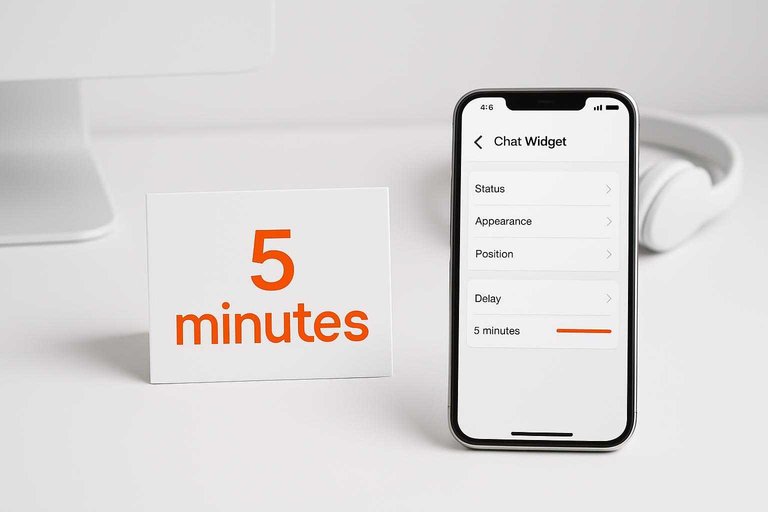
- Notification timing isn’t real-time: Tidio’s offline email notification can be delayed by 5 minutes after a message is received (when the widget stays offline and nobody takes over). That’s how you get “they messaged” + “we never saw it.” Winner: chat settings.
One-Hour Reliability Checklist
-
Lock down (or deliberately unlock) domain restrictions first
Check every hostname your widget might load on: your production domain, the www/non-www variant, any app subdomain, and staging.
If you’re debugging a “widget not showing” problem, temporarily leaving the trusted-domain list empty is a known way to restore loading across domains—then re-enable the restriction once you’ve confirmed what domain entry was missing (as discussed in this Intercom community workaround). -
Verify identity/security gates with a real page load (not just a settings screenshot)
If you enforce Identity Verification (JWT), open the site and watch the network requests: a bad configuration can block the widget outright.
Do one clean test session (incognito window) where you expect the widget to load, and confirm it loads before you worry about routing or alerts. -
Make offline behavior explicit (don’t let “offline” silently equal “gone”)
Find the setting that controls whether the widget stays visible when no agents are available.
In Tidio, “Display widget when agents are offline” is enabled by default—so if your bubble disappears when you’re away, assume a chat setting was changed and decide if that’s actually what you want. -
Check fallback routing as a system, not a person
Put your chat into an offline state on purpose, send a message, and confirm where it lands.
Your goal is simple: the fallback path must notify a place you actually monitor, even when the “live” path is unavailable. -
Test the real-time notification path and treat timing as a diagnostic
Send a message from a device/account you don’t normally use and measure what happens end-to-end: message sent → alert received → reply visible back on-site.
If you’re using an Intercom developer workspace for testing, watch the workspace lead/user cap (20 users/leads has been cited as a limit): hitting it can make your “tests” look like missed chats when you’ve actually stopped capturing new ones.
Offline Policy Decision
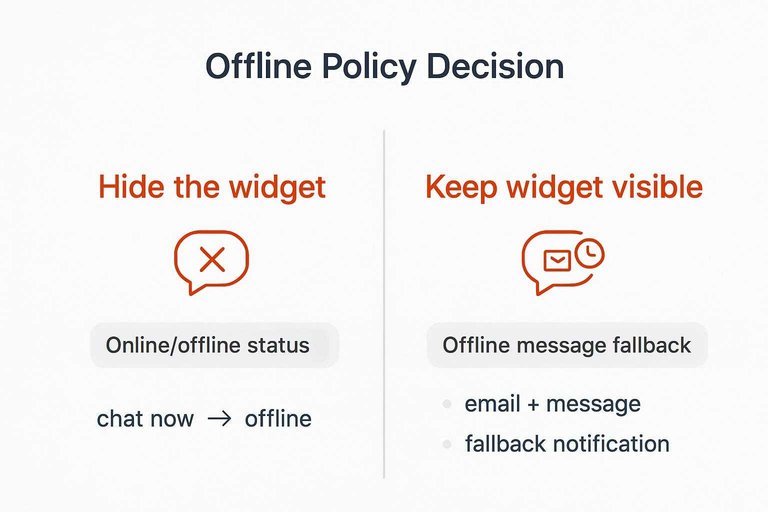
Your offline policy decides what “offline” means to a visitor: does the chat option disappear, or does it stay up and capture a message for later follow-up?
Start with online/offline status (agent presence)—meaning whether the system treats your team as currently available for live chat. That single state usually changes what visitors see (a “chat now” experience vs an offline prompt) and it also changes what alert paths fire.
Then decide what you want to happen when nobody is available via an offline message / fallback notification—meaning what the system does when no agent can take the chat (for example: capture an email + message, create a ticket, then notify you later).
Here’s the rule:
If visitors will reasonably expect a live reply—and you cannot meet that expectation—hide the widget when you’re offline (or replace it with a non-chat contact option). The win isn’t “fewer messages.” It’s fewer situations where someone types into a chat bubble and learns, too late, that they were really filling out a slow contact form.
If you still want to capture demand outside coverage hours, keep the widget visible, but make it explicitly asynchronous. That means your offline UI should ask for the minimum needed to follow up (usually email + message) and your fallback notification must hit a channel you actually monitor, not a dashboard you only open when you remember.
A simple gut-check: if your offline fallback wouldn’t reliably reach you quickly, you’re setting yourself up for “the visitor messaged, but nobody saw it in time.”
Alerting That Sticks
If your goal is “no missed chats,” your chat settings should assume you won’t stare at a support dashboard all day (whether you’re using Zendesk Web Widget (Classic), LiveChat, or tawk.to). The practical question is which alert channel still gets seen when you’re busy.
| Alert channel | What it’s good at | Where it breaks | Best fit for small teams |
|---|---|---|---|
| Dashboard-only | Full context, assignments | Not opened = no alert | Poor unless always staffed |
| Email fallback | Works when agents offline | Delays, inbox overload | Backup, not primary |
| Messaging app alert | Instant, lock-screen visible | No reply path by default | Better than email |
| Telegram two-way inbox (Eloqra) | Alert + reply in one place | Telegram becomes the inbox | Strong for phone-first ops |
For small teams, design against one predictable failure: dashboard-only “alerts” don’t exist if nobody is logged in when the visitor types.
So make your primary notification land in an always-checked channel (a messaging app), and treat email as a safety net.
If you want the channel to be more than an alert—meaning you can reply there and have it appear back in the on-site chat—use a routing-to-messaging approach. Eloqra is built around that: it forwards each visitor message into Telegram and keeps the flow lightweight (its script is listed as under ~5kb on the Eloqra product page).
Fix the delivery chain first
If you’re worried about truly “missed chats,” stop starting with colors, labels, and launcher tweaks—start by naming which failure mode you’re in, because the real losses come from chat settings: domain/identity gates that prevent loading, online/offline behavior that blocks sending, and notification paths that never reach a human. Run the one-hour checks in order, end-to-end, until you can watch a test message go from “sent” to “seen” to “replied” without relying on a dashboard being open. Only after that should you treat default widget visibility as a conversion lever (especially on mobile), not a reliability fix. And if your consistent break point is “alerts exist, but nobody is watching them,” route chats into an always-checked messaging channel with two-way replies; if you need a full ticketing workflow and staffed queues, a helpdesk-first setup is the better fit.
Frequently Asked Questions
- Where do I set chat settings in Zendesk Web Widget (Classic) without editing code every time?
- Use Zendesk Web Widget settings via the zESettings object to control widget behavior centrally (for example: what features are enabled and how the widget initializes). Keep those settings in one place in your site template so changes don’t get split across pages.
- Can chat settings hide my live chat widget on mobile and make it look like chats are “missing”?
- Yes—mobile visibility is a chat widget setting in tools like LiveChat, and turning off mobile display removes chat entirely for mobile visitors. If you see fewer conversations, confirm the widget is enabled on both desktop and mobile before debugging notifications.
- What chat settings should I test first to stop missed chats after I publish a new site domain or move to a subdomain?
- Test in this order: the widget loads on the new hostname, a visitor can send a message, and you receive an alert in the channel you actually monitor. Do it on every hostname you use (www/non-www, app subdomain, staging) so one untested domain doesn’t become a silent failure point.
- Is email a reliable primary chat setting for “no missed chats,” or should I use a messaging app alert instead?
- Use a messaging app as the primary alert channel and treat email as a fallback, because email is easy to miss and often arrives later than real-time. If you want alerts and replies in one place, route chats into a two-way inbox (for example, Eloqra sends messages to Telegram and lets you reply from Telegram).
- Do chat settings include language options for the chat widget, and does language affect missed chats?
- Language is a chat widget setting that affects whether visitors understand the prompt well enough to start a conversation, but it doesn’t fix delivery or notification failures. Eloqra supports 10 widget languages per project (English, German, French, Spanish, Italian, Portuguese, Polish, Dutch, Ukrainian, Russian).
Never Miss a Chat Reply
Once your settings are sound, the next bottleneck is response time—alerts that exist but don’t reach the person who can answer right now.
Eloqra forwards every visitor message to your Telegram and lets you reply from Telegram so chats don’t die in an unattended dashboard. Start on the Free Forever plan.
Written by
Eloqra
Notes from the Eloqra team on collecting testimonials and building authentic social proof.
Share: