September 8, 2026
·
Updated October 24, 2026
·
10 min read
9 No-Email Live Chat Mistakes That Lose Customers
A troubleshooter that pinpoints why “no‑email” live chat turns into lost sales and dead-end support — always-anonymous mode vs anonymous-by-default support, slow replies and zero follow-up (including Eloqra via Telegram), pre-chat fields and proactive triggers that bypass them, reconnections that stay anonymous, transcript/email gaps, visitor-vs-user handling, identity verification, and abuse controls so you can keep chat frictionless without losing continuity.

You add live chat so visitors can ask questions fast—but the conversations that matter keep vanishing the moment someone closes the tab. You’re left with “anonymous” threads, missed follow-ups, and no reliable way to send a transcript or continue the discussion later.
Get this wrong and you lose customers twice: first by being unavailable at the wrong moment, then by letting account-specific support turn into guesswork (or risk). This troubleshooter walks through nine no-email chat mistakes—plus the exact settings and checks that restore follow-up, reconnection, and safe support without adding unnecessary friction.
Wrong no-email chat
“No email chat” means two very different things.
In consumer/social products, it usually means always-anonymous: you can message without creating an identity, and that anonymity is the point. In SaaS support, it usually means anonymous chat—a chat flow where someone can start chatting without providing personal details like name or email—because you want less friction at the moment they need help.
The mistake is importing the social meaning into customer support: anonymous forever. That’s when a support conversation becomes a dead end the moment the person leaves the page.
Always-anonymous mode
If anonymity is the product, you’re not optimizing for continuity. Cisco describes anonymous chats as letting customers chat without personal details like name or email, and without showing a login page when they click the chat entry point. In that world, missing transcripts, follow-up, and account-specific help aren’t failures—they’re simply not expected outcomes.
Anonymous-by-default support
Support is different because you’re accountable for what happens after the tab closes.
Zendesk is blunt about the tradeoff: if you turn off collecting name/email in the pre-chat flow, you won’t have a record of that contact info in chat history and you won’t be able to follow up after the session ends. Intercom even bakes in the hybrid pattern: you can require an email from leads, and set it to “Only outside of office hours” so you can follow up when you were away.
This is also where visitor vs. user (identified user) matters: a visitor is an anonymous session; an identified user is tied to an account attribute (like email/user_id) so support can see history and context. The success condition for “no email chat” in SaaS is simple: start frictionless, but don’t let unresolved help leave with the visitor.
Slow replies, zero follow-up
No-email chat only works when it behaves like chat: fast, in-session, and resolved before the visitor disappears. The moment your first reply takes “email-like” time, you’ve recreated email support—except you didn’t collect the one thing email needs.
Speed expectations are concrete (and not forgiving). In Gladly’s Customer Expectations Report, 11% of consumers expect live chat responses in under 20 seconds. LiveChat’s Customer Service Report put the average first response time at 48 seconds (2020). If your first reply drifts into minutes, people don’t patiently wait—they bounce, and you’re left staring at an anonymous transcript you can’t continue.
That’s why offline form / off-hours capture matters: a fallback form shown when agents aren’t available, typically used to collect contact details so you can respond later. Intercom even recommends a hybrid setting—require an email “Only outside of office hours”—so you can follow up with people who wrote in while you were away.
Do a fast audit before you tweak anything else:
- Coverage: What hours do you truly have someone watching chat?
- Notifications: Where does a new chat go, and does it reliably wake someone up?
- After-hours behavior: Do you switch to offline form, or let visitors send messages you can’t answer?
- Follow-up path: If a conversation isn’t finished, what’s the exact mechanism to re-contact them?
If you can’t reply quickly, don’t pretend you’re “live.” Force capture when you’re offline—tawk.to’s Offline Form, for example, makes Name and Email mandatory.
Eloqra via Telegram
Eloqra routes each website message into Telegram, so you answer from a channel you already watch instead of a support dashboard you forget to open. When a question clearly needs follow-up, you can turn on its optional pre-chat form to capture name/email before the conversation starts. If you need complex routing, SLAs, or a team queue, a full helpdesk suite is a better fit than a lightweight Telegram-first flow.
Pre-chat fields misconfigured
A pre-chat form—fields shown before a chat starts (often name/email/department) to identify and route the conversation—only works if every entry path actually hits it.
-
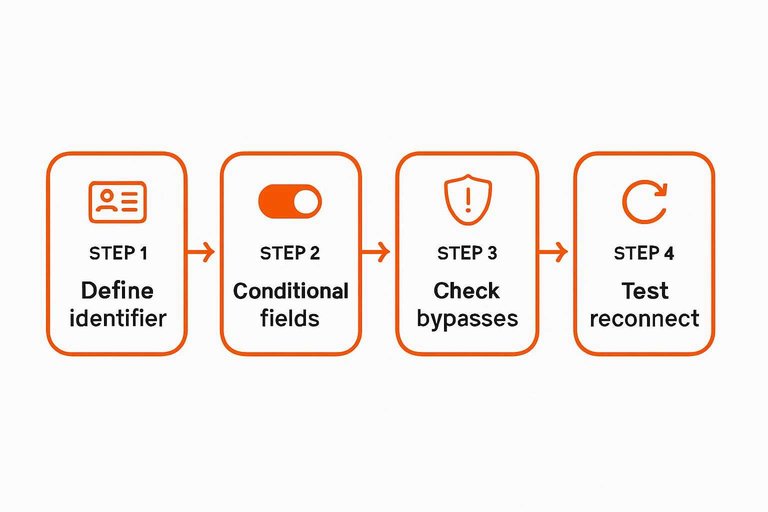
Decide what “no email chat” still must support. If you ever need follow-up, set at least one reliable identifier (name is fine) and a path to collect email when needed.
-
Make fields conditional, not “off.” Keep the first message frictionless, but require email at the moment you can’t finish in-session (handoff, escalation, or “send me this”).
-
Check for bypasses in your trigger settings. In Zendesk, chats started by a proactive trigger can bypass a required pre-chat form and queue the customer without contact info.
-
Test the timeout/reconnect path. Zendesk notes that if a session times out while the tab stays open, a reconnecting visitor won’t automatically see the pre-chat form again.
-
Verify transcripts aren’t a dead end. Zendesk’s manual “Email transcript” flow requires the customer to enter an email address in the chat window.
Triggers bypass your form
A proactive trigger—a rule that automatically prompts a visitor with a chat message (instead of waiting for them to open chat)—can quietly create “no email chat” even when you think email is required.
- List every way a chat can start. Button click, help-center widget, and every trigger/campaign.
- Run the trigger in a clean session. Use an incognito window and a page that should fire the trigger.
- Check what record you actually receive. If the conversation lands in your inbox as an anonymous “Visitor” (for example, “Visitor 123456”) with no email/phone, the trigger path is bypassing your required fields.
- Fix the start behavior, not the form. In Zendesk, proactive-trigger chats can bypass a required pre-chat form; change or disable those triggers until the trigger path forces the pre-chat capture before the chat is created.
- Retest after publishing. Trigger logic is easy to “fix” in settings and still fail on the live site due to targeting rules.
If a single start path can skip identity capture, you don’t “require email”—you require it sometimes.
Reconnections stay anonymous
A session timeout (when your chat widget decides the session ended after inactivity) can turn one person into two “new” anonymous threads—or worse, reconnect them without ever re-showing your pre-chat gate.
- Open your site in an incognito window and start a chat without entering email. In Intercom, that person starts as a Visitor and becomes a Lead once they message—still without email attached.
- Send one message, then simulate a flaky reconnect: toggle your network off/on or close the tab mid-chat and reopen the same page.
- Watch the widget: does it resume the conversation instantly, or does it re-prompt your pre-chat fields before letting them type?
- Compare with a “true new visit”: clear site data (cookies/local storage) and repeat.
- Mitigate the leak: if a resumed chat can continue without re-showing your pre-chat gate, you’ll keep generating anonymous threads that you can’t reliably tie back to a person once they leave.
Transcripts need an email
A transcript (a copy of the chat conversation you can email/export for follow-up, record‑keeping, or customer reference) is where “no email chat” quietly breaks.
- Spot the trap in your widget. In Zendesk, the customer can only request an emailed transcript by entering an email in the chat window (Options → Email transcript). If you never asked for email, this is the first time they hit a gate.
- Don’t force email up front “just in case.” Keep the start frictionless, then ask for email only when they click “Email transcript,” when you can’t resolve live, or when they explicitly ask for a follow‑up.
- Offer a no-email alternative. Add “Copy transcript” (plain text) or “Download” as the default, and keep “Email me a copy” as the optional path.
- Audit offline workflows. tawk.to’s ticketing needs a valid email to create a ticket you can reply to; if your chat goes offline without capture, the transcript becomes a dead end.
If your only transcript option is “email it,” you’re not running no email chat—you’re just postponing the form.
Users treated like visitors
If someone is already logged in, asking for their email again isn’t “no email chat.” It’s a broken handoff between your app and your chat widget.
Steps to support known users without adding friction
-
Detect “known user” early. As soon as your app session is authenticated, treat the chat session as account-owned, not page-owned.
-
Pass a stable user identifier into chat. Send your internal
user_id(or the account email if that’s all you have) to the chat tool on load so the conversation, profile, and history attach to the right account. -
Set identity before the first message. If you wait until after they type, you create a “visitor-first” thread that may not merge cleanly. Intercom’s model is explicit: without a
user_id/email, the person is a Visitor record, and only becomes a viewable Lead after they message in the Intercom Messenger. -
Don’t expose history/account data until identity is verified. Passing
user_id/email alone can be spoofed; Intercom’s Identity Verification (a “user hash”) is designed to prevent cross-user impersonation, and when enforced the Messenger won’t load for logged-in users without a valid hash. -
Keep guests frictionless. Let logged-out visitors chat anonymously, but switch to the identified flow the moment they sign in.
That split—anonymous for guests, verified identity for users—is the line between convenience and a data leak.
Identity not verified
If your “no email chat” identifies logged-in users by passing email or user_id into the chat widget, you’ve created a new attack surface: anyone who can spoof that identifier can look like someone else.
Steps to verify identity without adding friction
-
Auto-identify logged-in users, but assume the identifier is forgeable. Treat
email/user_idas a label, not proof, until you verify it. -
Add identity verification (
user_hash) before you load any user context. Identity verification is a server-generated signature that proves theemail/user_idyou send to the chat tool is genuine, preventing impersonation. -
Enforce the “verified-only” boundary. If the hash is missing/invalid, don’t show conversation history, prior tickets, account metadata, or anything that would confirm the user exists.
-
Degrade gracefully when verification fails. Keep the widget usable as a guest chat (general questions only), and route anything account-specific to an authenticated in-app path.
-
Turn on strict enforcement where data could leak. Intercom positions this as the point of Identity Verification: when enforced, the Messenger won’t load for logged-in users without a valid user hash.
The rule is simple: guest chat can be low-friction; account chat must be provably tied to the session.
Abuse controls missing
No-email chat removes a gate, so bots and low-intent spam can reach the same inbox as real customers. Without basic filtering, you end up mixing real support conversations with noise you can’t follow up on.
-
Set default throttles. Rate-limit new conversations and rapid-fire messages per visitor/IP so one source can’t flood your queue.
-
Make suspicion tighten capture. Keep the first message open, then require stronger capture (name, then email) when you see abuse patterns: repeated copy‑paste, link drops, or multiple chats from the same source.
-
Use a ban list early. A ban list (also called a visitor ban) blocks specific visitors—cookie-based—and/or IP addresses from using chat again. Keep it in the agent UI so banning takes one click, not a Jira ticket. Zendesk Chat supports banning up to 5,000 IP addresses, plus unlimited banned visitors.
-
Gate escalation paths. Don’t let anonymous chat reach account-specific actions (billing changes, refunds, data requests). Route those behind sign-in or an email capture step.
-
Review what you’re blocking, then fix the entry point. If the same page/trigger keeps producing bans, move throttles or capture earlier on that specific path.
Make “no email” survivable
No‑email chat works for SaaS only when it’s anonymous at the start, not anonymous forever: the moment you can’t finish the issue in-session, you need a deliberate step that captures a way to continue (offline, transcript request, escalation, or follow‑up). Your fastest win is to trace every entry path—button, help widget, and proactive triggers—and confirm none of them can create a “Visitor” thread that bypasses your capture or reconnects without re-prompting. Then draw a hard line between guest convenience and account support: auto-identify logged-in users, but don’t expose history or account context unless identity verification is enforced. If your real problem is slow first replies because nobody watches a support dashboard, route chats to a channel you already monitor and add optional pre-chat capture when follow-up is required; if you need heavy routing, SLAs, and queue management, move to a full helpdesk suite instead.
Frequently Asked Questions
- Can I run no email chat and still follow up after the visitor leaves my site?
- Yes—start with anonymous chat, then require an email only at “follow-up moments” like off-hours messages, escalations, or when the visitor asks you to send something after the chat.
- What happens to no email chat messages when your team is offline?
- If your “offline” flow creates a ticket, you need a valid email to reply later; for example, tawk.to Ticketing can’t respond to an offline message from the Inbox without a valid visitor email.
- How do I decide when to ask for email in a no email chat widget?
- Ask for email only when the issue can’t be resolved in-session: transcript requests, handoffs/escalations, account-specific work, refunds/billing changes, or any promise to follow up after the tab closes.
- Is no email chat the same as “anonymous chat” or “talk to strangers” chat?
- Not quite—no email chat for SaaS support means anonymous at the start to reduce friction, while anonymous social chat is designed to stay identity-free even when continuity and follow-up are impossible.
- How can I make no email chat respond faster without staffing a full helpdesk?
- Route chats to an inbox you already watch on your phone; Eloqra forwards website live chat into Telegram and lets you manage multiple sites in one place via the Eloqra Telegram Mini App.
Reply in-session every time
These mistakes usually aren’t about intent—they’re about missing the first reply while visitors are still on the page. If you can answer from the channel you already watch, no‑email chat stays real-time.
Eloqra forwards every chat bubble message straight to your Telegram with visitor context, so you can respond from your phone without living in a support dashboard. Start on the Free Forever plan.
Written by
Eloqra
Notes from the Eloqra team on collecting testimonials and building authentic social proof.
Share: